Your Home page is the first thing you see when you sign in. It shows how your listing is doing, what needs your attention, your next five days, your revenue and visitors, your projects and your website, all in one place.
This article walks through each card, top to bottom, and what you can do from it.
Where to find it: Click Home in the left menu. On a phone, tap Dashboard, the round button in the middle of the menu at the bottom of the screen.
In this article
- Business Listing
- Pro Account
- Upcoming Calendar
- Attention Required
- Revenue
- Visitors
- Projects
- Business Website
- Meet Local Pros
- The dashboard tour
- Help and tools
- Troubleshooting
- Related articles
Business Listing
This card shows whether the selected category is Listed in the RebookMedia directory or Unlisted, and what is missing.
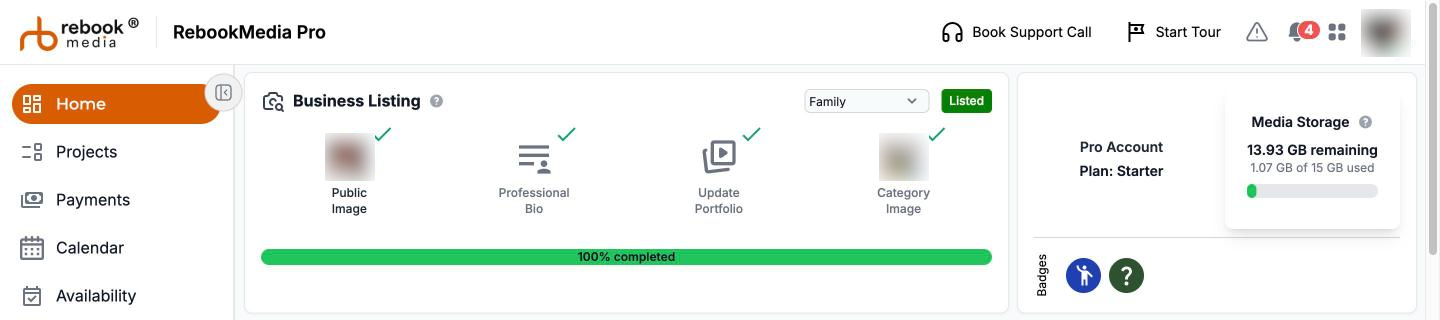
- Use the category list at the top of the card to switch between your categories, or choose Add Category.
- Complete the four tiles: Public Image, Professional Bio, Update Portfolio and Category Image. Each adds 25% to the bar ("[N]% completed"); missing ones pulse, and finished ones get a green check.
See Getting Started with Business Listings.
Pro Account
- Plan: the plan you are on, and "Trial ends" with the date if you are on a free trial. An Upgrade Plan button shows during a trial or when your storage is nearly full.
- Media Storage: how much space you have used for project photos and videos, for example "2.4 GB of 15 GB used". The bar turns yellow, then orange when you are almost full, and red when full ("New uploads are paused."). Click Get more storage to see your options.
- Badges: the badges you have earned, such as Top Rated and Best Seller.
See Manage your plan and subscription.
Upcoming Calendar
Today and the next 4 days. RebookMedia bookings are orange and other Google Calendar events are green. Click or tap an item to see when and where it is and the client, with an Open project button for bookings.
- If Google Calendar is connected, click Calendar at the top right for the full calendar.
- If not, click Connect Calendar to connect it (on the website).
See Use your calendar and connect Google Calendar.
Attention Required
Cards for the things that need you, with the most urgent first. The red number shows how many there are. Scroll sideways (swipe on a phone, or use the arrows) to see them all. When nothing is waiting you will see "All caught up!"
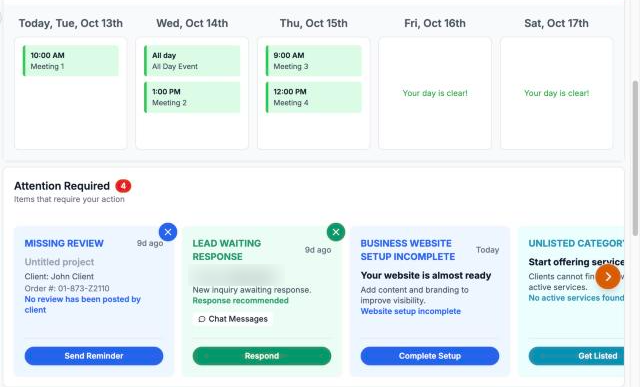
- Overdue Invoice and Unpaid Invoice: an invoice past or coming up to its due date. View Invoice opens the project; Reminder opens an email to your client using your invoice reminder template. The card goes away when the invoice is paid or voided.
- Lead Waiting Response: someone wrote to you through your website, your profile's chat or a contact form. Click Respond to reply. For chat messages, the card goes away when you reply; for other leads, click the X once you have dealt with it.
- Missing Review: you asked a client for a review and they haven't left one. Send Reminder sends them a reminder email.
- Validate Email: confirm your email address. Click Verify Email, then click the link in the email we send you.
- Storage Limit Reached: you have 20% or less of your media storage left. Upgrade your plan for more space, or remove media you no longer need.
- Business Website Setup Incomplete: your website isn't published yet. Click Complete Setup.
- Unlisted Category: your profile is missing details clients need. Click Get Listed to finish it.
Cards with an X can be dismissed. Others go away on their own once the task is done.
See Send invoices and get paid, Manage your leads and Use templates for emails and contracts.
Revenue
What you have been paid over the last 7 or 30 days ("Revenue, last 7 days"), compared with the period before, with a chart (the previous period is the dashed line).
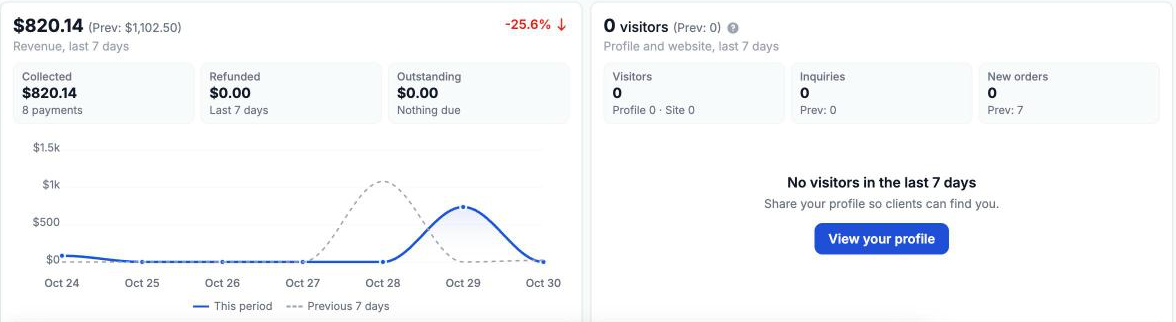
- Collected: payments received in the period.
- Refunded: refunds you gave in the period. Revenue is shown after refunds.
- Outstanding: invoices still unpaid, and how many are overdue.
Revenue includes payments, deposits and photo store sales. Use the menus to choose Last 7 days or Last 30 days and a category. Click a tile to open your Payments page, or Report for your full Sales Report.
Visitors
How many different people opened your RebookMedia profile or your website over the last 7 or 30 days, compared with the period before. Search engines, you, your team and RebookMedia staff aren't counted.
- Visitors: split between your profile and your website.
- Inquiries: new chat conversations and website contact or quote requests.
- New orders: projects and bookings created in the period.
Choose a category to see visitors to that category's profile only. Click a tile or Report for the full Visitors report: where visitors come from, your top pages, devices and places.
Projects
Your in-progress projects, soonest visit first. The first one is shown large, with a photo, its next visit ("Today", "Tomorrow" or the date), the client and category, and what is due. If it has no visit yet, click Schedule visit.
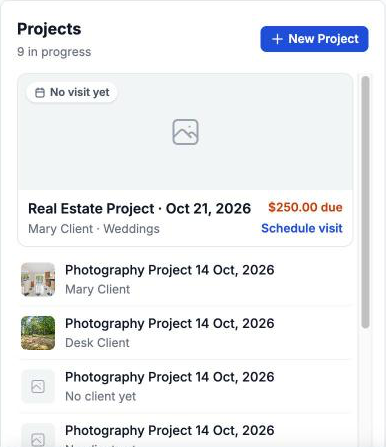
- Click any project to open it, or View all projects for your Projects page.
- Click New Project to create one right in the card: choose the client (optional), category and order date, then Create project.
If you have no projects in progress, the card says "Start your first project" with a New Project button. See Create and manage projects.
Business Website
A preview of the top of your live website, with your design's name and your web address. Click the preview or the pencil to open your Website page, or the arrow icon to open your site. See Create and publish your website.
Meet Local Pros
Photographers, videographers and assistants near you, to network with or build a team. Choose a distance (5 to 50 miles), search for a skill, or click a professional to see their card and Message them. Add your own skills so nearby pros can find you; skills are self-reported, so check before you hire. See Meet local pros and add your skills.
The dashboard tour
A one-minute guided tour of your Home page. It starts once by itself after you finish setting up your profile, and you can replay it any time:
- On a computer or tablet, click Start Tour at the top of the page.
- On a phone, tap the flag icon at the top.
Click Start the tour, then Next and Back (or use the arrow keys; swipe on a phone). Press Esc or click Not now to close it. At the end, quick buttons help you finish your listing, create a project or work on your website.
Help and tools
- The first time you open your Home page, a Welcome to RebookMedia window helps you set up your profile (Basic Info, About Me, My Portfolio). If you close it, use the Business Listing tiles to finish.
- Click Book Support Call at the top of the page to schedule a call with our team.
- Click the warning sign at the top of the page to report an issue to our team.
- When we release something new, a short "What's new" message appears on your Home page. Click Got it! to close it.
See New to RebookMedia? Start here!.
Troubleshooting
My Home page asks me to "Select your main category"
You don't have an active category yet. Pick the one that best matches your business and click Save & Continue.
The calendar says "Failed to sync latest timeline updates."
Reconnect Google Calendar: on the Connect page, click Disconnect and then Connect.
A lead card is still there after I replied
Website and contact form leads stay until you dismiss them. Click the X on the card.
I didn't get the verification email
Check your spam folder, or click Resend Email in the verification window (you can resend after 60 seconds).
The Revenue or Visitors card is empty
They load when you scroll down to them; wait a moment. "No payments in the last 7 days" or "No visitors in the last 7 days" means there were none in that period; try Last 30 days.
The 7 or 30 days menu didn't change anything
Wait a couple of seconds after the page loads, then choose again.
Still stuck? Book a free 30-minute call with our support team and we will walk through it with you.