A lead is someone who gets in touch before they book: through the chat on your website or directory profile, or the contact form on your directory profile. Inbound Leads collects them in one place, so you can reply fast, keep track of who you have contacted, and turn leads into clients.
Where to find it: Click Clients in the left menu and open the Inbound leads tab. On a phone, tap the menu icon at the top left first to open the menu.
In this article
- Where leads come from
- Get told about new leads
- Your Inbound Leads
- Open a lead
- Reply, call or text
- Mark a lead as contacted
- Turn a lead into a client
- Archive or restore a lead
- Notes on a lead
- Leads on your Home page
- Tips
- Troubleshooting
- Related articles
Where leads come from
- Chat: visitors who message you from the chat bubble on your website or your directory profile.
- Contact forms on your directory profile.
Each person is one lead, even if they write several times. Leads are collected automatically; turn on the chat bubble for your website with Website chat in Website > Customize (see Customize your website).
Good to know: messages from your website's contact form and Request a quote buttons are emailed to you ("You have a message from your website"), and don't appear in Inbound leads. Reply to them by email or phone.
Get told about new leads
When a new lead comes in, you get an email "New Message from [name]" with their details and message, and a text message if you turn texts on. Choose in Settings > Bookings, under Notifications: Receive Emails and Receive SMS.
Your Inbound Leads
The tiles at the top show your New leads (waiting for your reply), Contacted (in conversation), Converted (leads that became clients, with your conversion rate) and your Top source.
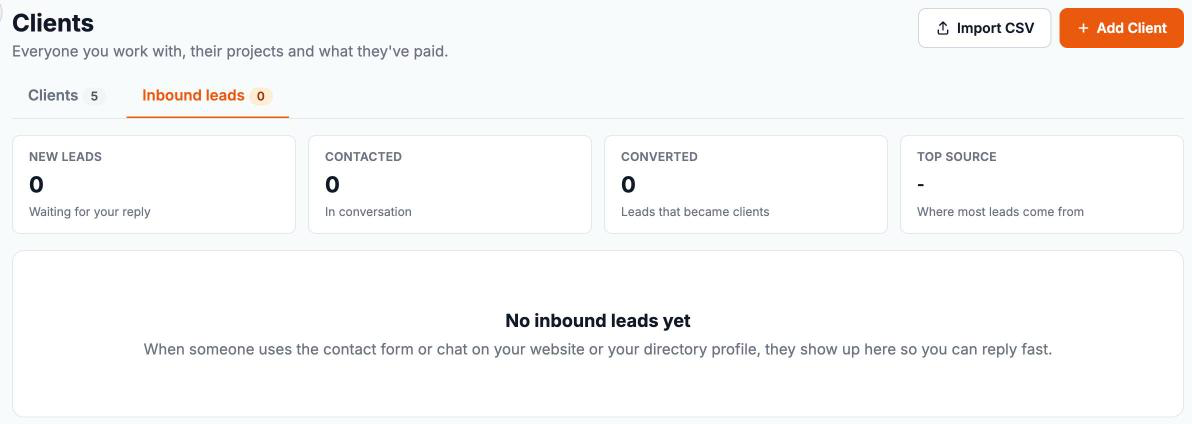
- Tabs: New, Contacted, Converted, Archived and All
- Search: find a lead by name, email, phone, message or website.
- The list: each lead's name and contact details, their latest message, where it came from and how many messages they have sent, when it arrived and its status.
The number next to the Inbound leads tab is how many new leads are waiting.
Open a lead
Click a lead to open it. You see their contact details, where they first reached out and when, their full conversation with you (newest first), and your notes.
Reply, call or text
- Reply: opens an email to the lead from your business. Use Templates to start from a saved Client Email template, and Tokens for their name.
- Call and Text: shown when the lead left a phone number. They open your phone's calling or messaging app.
- Message in Inbox: for chat leads, continue the conversation in your Inbox.
Tip: reply quickly. People often contact several photographers, and the first good reply usually wins the booking. See Turn inquiries into bookings.
Mark a lead as contacted
A new lead moves to Contacted automatically when you reply by email or use Call or Text. If you got in touch another way, for example from your Inbox, click Mark as contacted.
Turn a lead into a client
- Open the lead and click Convert to client.
- Check their first name, last name, email and phone (10 digits, or leave it empty).
- Tick Send a welcome email if you want to invite them to their free client account now. It's off by default.
- Click Convert. You will see "Added to your clients."
The lead moves to Converted, and they appear on your Clients list. Their profile shows how they found you, the messages they sent before becoming a client, and your notes. Click Open client to go to their profile, then start a project for them. See Manage your clients.
Good to know: keep the email address the lead used, so their messages and notes carry over to their client profile.
Archive or restore a lead
- Open the lead and click Archive lead.
- Choose why: Spam, Not a real lead, Went elsewhere or Other.
- Click Archive. You will see "Lead archived."
Archived leads move to the Archived tab. Open one and click Restore lead to move it back to New. Converted leads can't be archived.
Notes on a lead
Under Notes, write anything you want to remember, for example "Called, left a voicemail", and click Save. Only you can see notes, and they carry over when you convert the lead.
Leads on your Home page
New leads also appear as Lead Waiting Response cards in Attention Required on your Home page. Click Respond to open the lead. Once you have dealt with it, click the card's X to dismiss it. See Your Home dashboard explained.
Tips
- Check the New tab every day, and aim to reply within an hour.
- Use a reply template for your most common questions, such as pricing and availability.
- Archive spam straight away, so your New tab only shows real people.
- Watch your conversion rate in the Converted tile; better replies and faster responses raise it.
Troubleshooting
"This lead has no email address to reply to."
Call or text them instead, or continue in your Inbox for chat leads.
"Enter a 10-digit phone number, like 908-555-1212, or leave it empty."
Correct the phone number in the convert form, or clear it.
"This client is archived. Choose Archived in the Clients filter to restore them."
They were your client before. Restore them on the Clients tab instead.
A lead wrote again but isn't under New
Leads keep their status. Check the Contacted, Archived or All tabs.
I have no leads
Leads come from chat on your website and profile, and from your profile's contact form. Check Website chat is on in Website > Customize. Website contact form and quote messages come to you by email instead.
Still stuck? Book a free 30-minute call with our support team and we will walk through it with you.