RebookMedia gives your business its own website, with a free web address such as yourname.rebookmedia.com. It is filled in automatically from your account: your portfolio, services, categories, reviews and contact details, and clients can book you, message you or request a quote from it.
This article covers the Website page, your web address, choosing a design, making a design live and managing your templates.
Where to find it: Click Website in the left menu, or click the Business Website card on your Home page. On a phone, tap the menu icon at the top left first to open the menu.
In this article
- How your website works
- The Website page
- Your web address
- Choose a new design
- Make a template live
- Manage your templates
- What visitors see
- Troubleshooting
- Related articles
How your website works
- Your site is already live. Every account starts with the Default design (Signature), filled in from your account.
- Templates are versions of your site in different designs. Only one is live at a time; the others are drafts.
- Customize sets your photos, text, colors, pages and buttons. These settings belong to your website, so they apply to whichever design is live, and changes show straight away. See Customize your website.
- Your content comes from your account: portfolio, services and prices, categories, reviews, hours and service areas. Update them in your account and your website updates too.
The Website page
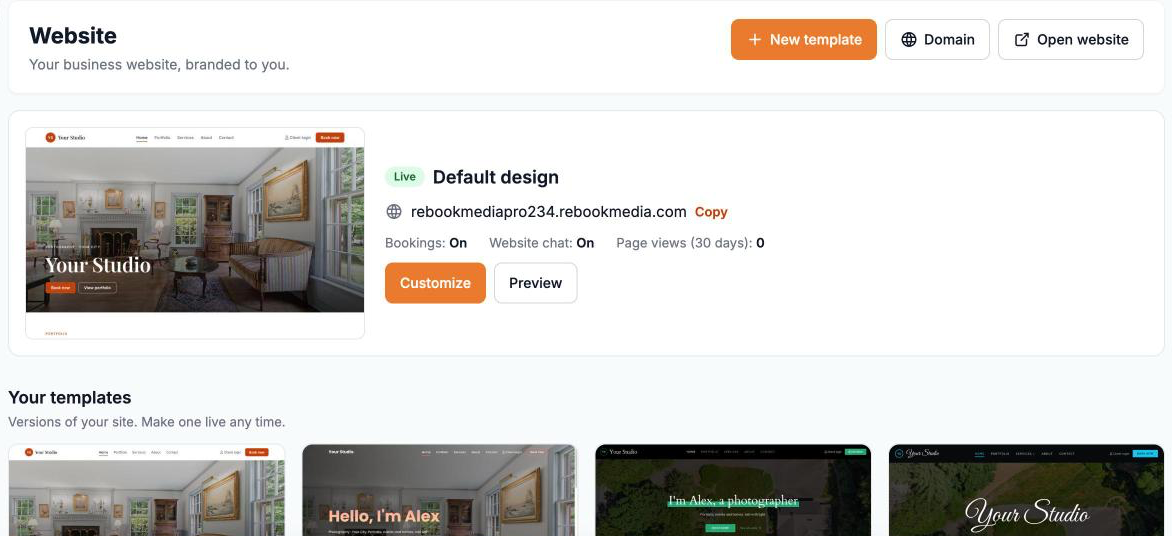
- Your live site: the design that is live, when it was last updated, your web address (click Copy to copy it), whether Bookings and Website chat are on, and your page views over the last 30 days. Click Customize or Preview.
- Your templates: the versions of your site, each marked Live or Draft.
- At the top: New template, Domain and Open website.
Your web address
- Click Domain.
- In Web address, type the name you want before .rebookmedia.com, using letters, numbers and dashes.
- Wait for "[name].rebookmedia.com is available" ("That web address is taken. Try another." means someone has it).
- Click Save. You will see "Saved".
Important: when you change your web address, the old one stops working straight away. Update any links you have shared, for example on social media or business cards.
To use your own domain, such as yourbusiness.com, see Connect your own domain.
Choose a new design
- Click New template (or the + New template card).
- Use the chips to filter the designs, and click the one you like.
- Give it a Name, then click Create. You will see "Template created."
- New templates are drafts, so your live site doesn't change until you make one live.
- Designs marked Upgrade to use need a higher plan; click to see your options. The Default design is included in every plan.
- Designs marked Coming soon are being updated and will be available shortly.
Make a template live
- On the template's card, click Preview (the eye icon) to see it with your own content.
- Click Make live and confirm "Make this template live? It replaces your current website."
- You will see "Template published." Visitors see the new design straight away.
To go back to the Default design, click Make live on its card.
Manage your templates
Each card has Customize (the palette icon), Preview and a More menu:
- Lock / Unlock: a locked template can't be deleted.
- Delete: removes the template, after you confirm "Delete this template? This cannot be undone." Unlock it first if it's locked.
If you delete your live template, your site goes back to the Default design.
Good to know: a few older template copies, made before their design was updated, can't be customized. Create a new template from that design instead (delete the old copy first if the design says "Already in your templates").
What visitors see
- Home: your main photo, headline and tagline with a Book now button, featured work, your service categories with prices, About you, reviews, hours, areas you serve and contact details.
- Portfolio: your photos by category, with a full-screen viewer.
- Services: each category with its services, options, prices and durations, and a page for each category.
- About and Contact, with a contact form.
- Client login: your clients sign in to see their bookings, invoices and photos.
Your business name appears in the browser tab, and your logo (or your initials) at the top. On phones, a bar at the bottom offers Message, Call, Contact and Book now. See Website settings, branding and leads.
Troubleshooting
My new template isn't showing on my site
New templates are drafts. Click Make live on its card.
"This template isn't included in your plan."
Choose another design, or upgrade your plan.
"That web address is taken. Try another."
Try a different name, for example with your city or "photo" added.
My website shows old information
Your site uses your account details. Update your portfolio, services, categories or business details, then reload your site.
Still stuck? Book a free 30-minute call with our support team and we will walk through it with you.