RebookMedia lets you bill clients from each project and get paid online through Stripe, or record payments made by cash or check. Every payment is tracked on the project and on your Payments page, and your client gets a receipt automatically.
This article covers connecting Stripe, building the bill, sending an invoice, collecting payments, voiding invoices, refunds, receipts and deposits.
Where to find it: Invoices are sent from each project (open Projects in the left menu, then the project). All your payments are on the Payments page in the left menu. On a phone, tap the menu icon at the top left first to open the menu.
In this article
- Connect Stripe
- Build the bill on the project
- Send an invoice
- Collect a payment (cash, check or card)
- The Payments page
- Void an invoice
- Refund a payment
- Text an invoice to your client
- Receipts and reminders
- Deposits from online bookings
- Fees
- Troubleshooting
- Related articles
Connect Stripe
Stripe processes your online payments and sends the money to your bank. You need a connected Stripe account to send invoices, take card payments and collect deposits.
- Click Connect in the left menu.
- Next to Stripe, click Connect.
- Sign in to your Stripe account, or create one, and authorize RebookMedia.
- You come back to RebookMedia and see "Stripe Connected Successfully". The button now says Disconnect.
Good to know: clicking Disconnect stops new invoices and deposits straight away, with no confirmation step.
Build the bill on the project
An invoice bills what is on the project, so set up the project first.
- Services: click Add a Service Line and choose the service, quantity and price. Each line shows +Tax or No Tax; click it to switch.
- Sales tax: in the Order Summary, click Sales Tax, choose a state, enter the percentage and click Add. Pick which rate is your Default; it is applied to lines marked +Tax.
- Discount: click Add Discount and enter a percentage.
The Order Summary shows the Sub Total, Sales Tax, Discount, Total, Payments and the Balance Due.
Send an invoice
- On the project, click Send Invoice (or Create New > Invoice).
- Check the Due Date (10 days from today by default).
- Check the Amount Due. It starts at the full balance; lower it to bill part of the balance (at least $0.50).
- Edit the subject and message if you like. Use Tokens to add details such as the invoice number and the payment link, and Templates to reuse a saved message. Tick Save as my template to save this one.
- To text it too, tick Also send by SMS (see below).
- Click Send Invoice. You will see "Invoice Successfully sent to the client." (or "...by email and text.").
Your client receives the email from your business, with a link to a secure Stripe page where they can review the invoice, print it and pay.
- Sending a new invoice on a project cancels any earlier unpaid invoice on that project, so only the newest link can be paid.
- To bill in parts, send an invoice for part of the balance. When it is paid, send another for the rest.
Collect a payment (cash, check or card)
Use Collect Payment on the project when your client pays you in person or over the phone.
- Click Collect Payment on the project.
- Choose the Payment Type: Cash, Check (enter the check number and bank name) or Card (enter the card details).
- For cash or check, enter the amount received.
- Click Proceed.
- Card charges the full balance due straight away through Stripe.
- Cash and check are recorded for your records; no money moves through RebookMedia and there is no fee.
- Your client gets a receipt and you get a payment notice, just like an online payment.
On a phone: the Collect Payment button is only shown on larger screens. Use a computer or tablet to record a payment.
The Payments page
Click Payments in the left menu to see all your money in one place:
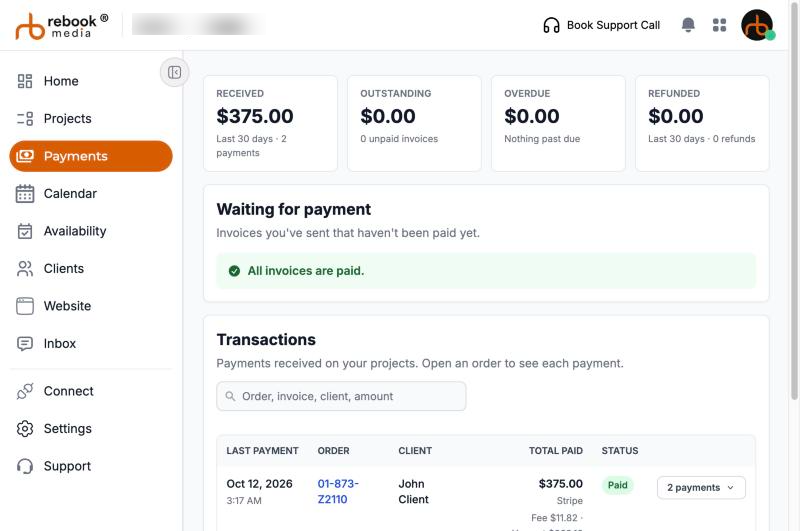
- Received, Outstanding, Overdue and Refunded totals at the top.
- Waiting for payment: invoices your clients haven't paid yet. Overdue ones show how many days late they are.
- Transactions: every payment, with the fee and what you get. Click an order to see its payments.
- Past invoices: paid and voided invoices, with a PDF to download.
Void an invoice
Void an invoice your client shouldn't pay, for example if it was sent with a mistake.
- On the Payments page, under Waiting for payment, click Void (or click the trash icon on the invoice in the project's Invoices tab).
- Click Void invoice (or Yes, void it) to confirm. This can't be undone.
Your client can no longer pay it. The balance on the project stays the same, so you can fix the project and send a new invoice. Paid invoices can't be voided; refund the payment instead.
Refund a payment
You can refund payments made through Stripe, in full or in part.
- On the Payments page, under Transactions, click the order to see its payments.
- Click Refund on the payment.
- Choose Full refund or Partial refund and the amount.
- Choose a Reason and add an internal note (your client doesn't see it).
- Click Continue, check the details, and click Refund $X.
- The refund comes out of your Stripe balance. If there isn't enough available yet (new payments take a few days to clear), try again later.
- Your client and you both get an email. Refunds take 5 to 10 business days to reach the client's statement.
- Refunds are final, and the project's balance due doesn't go back up.
- Cash and check payments can't be refunded in RebookMedia; return the money to your client directly.
- Refunds you make in your Stripe dashboard are picked up automatically when you open the order.
Text an invoice to your client
You can also send an invoice, or a reminder, by text message, with the amount and the same secure pay link as the email:
- In Send Invoice, tick Also send by SMS to ... under "This invoice will send to". A Text preview shows exactly what your client will get.
- In a reminder, the same box is under Subject.
- Your client gets a short text from your business, for example: "Hi Sarah, your invoice for $250.00 is ready. View and pay: [link] Reply STOP to opt out."
- The email is always sent first; if the text can't be sent, you are told why and the email still goes out.
Texting is available when the client has a mobile number and Enable SMS ticked on their client record (Clients > Edit). Only tick it once your client has agreed to receive texts. If a client replies STOP, texts to them stop, and the box tells you so. See Manage your clients.
Receipts and reminders
- Receipts are emailed to your client automatically when they pay. To send one again, click Send Receipt on a paid invoice in the project's Invoices tab.
- Reminders are not sent automatically. To nudge a client, click Send Reminder on the unpaid invoice in the project's Invoices tab, or Reminder on an invoice card on your Home page. Tick Also send by SMS to text it too.
- You can set up your own wording for invoice and receipt emails in Settings > Templates.
Deposits from online bookings
To take a deposit when clients book online, turn on Require a deposit in the service's Deposit section (see Create and manage your services). The deposit is charged when the client books, and shows on the project as a paid "Deposit" invoice. Send an invoice for the rest later. Deposits need a connected Stripe account.
Fees
- Your client pays exactly the invoice amount; no fee is added for them.
- A processing fee is taken from each online payment, depending on your plan. You can see the fee and what you get for every payment on the Payments page, under Transactions ("Fee $X, You get $Y"), and in the payment email you receive.
- Cash and check payments you record have no fees.
Troubleshooting
The "Also send by SMS" box is greyed out
The reason is shown under it: for example, the client has no phone number, Enable SMS isn't ticked on their client record, or they replied STOP. Edit the client on the Clients page to add their number and tick Enable SMS once they agree to texts.
"To send the invoice, please connect your account with Stripe"
Connect Stripe from the Connect page in the left menu, then try again.
"There is no customer selected for this order"
Add a client to the project first: click the pencil icon next to Client on the project.
"There is no balance due on this project"
The project is fully paid, or its total is $0. Check the services and the Order Summary.
My client says the payment link doesn't work
You may have sent a newer invoice, which cancels the earlier one. Ask them to use the link in the newest email, or send the invoice again.
"Your Stripe balance doesn't have $X available yet"
New payments take a few days to clear, or the money may already have been paid out to your bank. Try the refund again later, or contact support.
I can't find Collect Payment on my phone
Collect Payment is only shown on larger screens. Use a computer or tablet.
Still stuck? Book a free 30-minute call with our support team and we will walk through it with you.