Your RebookMedia plan decides which features you can use and how many projects, categories, services, service areas and team members you can have. You can start with a free trial, change plans at any time, switch between monthly and yearly billing, and update your card, all from your Subscriptions settings.
This article covers the free trial, your Subscriptions page, changing and cancelling your plan, your payment card, plan limits, and what happens when a plan ends.
Where to find it: Click Settings in the left menu, then open the Subscriptions tab. On a phone, tap the menu icon at the top left first to open the menu.
In this article
- Plans and the free trial
- Your Subscriptions page
- Change your plan
- Monthly or yearly billing
- Update your payment card
- Plan limits
- Cancel or resume your plan
- When a plan ends
- Troubleshooting
- Related articles
Plans and the free trial
- See all plans, prices and what each includes on the Pricing page.
- The Member plan is free and lets you build your public presence and get discovered.
- Paid plans start with a 14-day free trial. No card is needed to start.
- To keep your paid plan after the trial, add a payment card on the Subscriptions page before the trial ends. Your plan then continues automatically and your card is charged.
While you are on a trial, the Subscriptions page shows "Your free trial ends on" with the date, and your Home page shows when the trial ends.
Your Subscriptions page
- Active Subscriptions: your plan, its price, its main features (click Show More for all of them), its status, and its start and renewal dates.
- Change Plan and Cancel Plan buttons.
- Payment Method: the card used for your subscription.
- If you have the Pro Verified Badge, it appears as its own subscription with its own status.
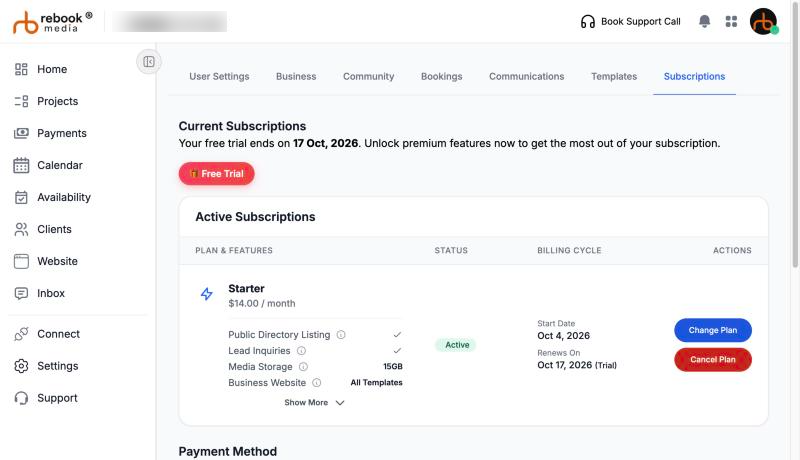
Change your plan
- On the Subscriptions page, click Change Plan.
- Choose Monthly or Annually at the top.
- Click the plan you want. It gets a green check.
- Click Confirm Change. If you don't have a card on file yet, add it and click Add Payment Method & Start.
- You will see "Subscription has been changed."
If the new plan has smaller limits, a Before you change plan box shows what changes first: for example, that you have more active projects than the new plan allows (they all stay, but you can't add more), or that online booking isn't included and will be turned off.
- Upgrading or changing between paid plans: the change happens straight away. Stripe adjusts your next bill for the time left on your old plan.
- Changing during your free trial: your paid plan starts straight away and your card is charged, without the rest of the trial.
- Changing to the free Member plan: your paid features stop straight away. Nothing you created is deleted, but you can't add more than the Member plan allows.
Tip: when you reach a limit, click the lock on the button to see which plan gives you more room, and upgrade from there. See Plan limits below.
Monthly or yearly billing
Choose how you pay when you sign up, or later with Change Plan (use the Monthly / Annually switch). Yearly billing shows the monthly equivalent and how much you save. The Member plan is free, so it has no billing.
Update your payment card
- In Payment Method, click Update Credit Card (or Add Payment Method Card).
- Enter the new card details and click Save Changes.
- You will see "Payment method card changed successfully." Your subscriptions are charged to this card from now on.
Card details are processed securely by Stripe; RebookMedia doesn't store your full card number. After each renewal you get an email with a Download Invoice link for your records.
Plan limits
Each plan includes a set number of:
- Projects: in-progress and completed projects count; cancelled ones don't.
- Categories and services: only active ones count.
- Service areas and team members (people you invited count until they decline or you remove them).
- Media storage for the photos and videos in your projects.
- Website templates and online booking, which some plans don't include.
Client bookings are never limited: clients can always book you online if your plan includes online booking. Things you already have keep working if you move to a smaller plan.
When you reach a limit
Buttons such as New Project or Add Service show a lock, and pages show how much you are using, for example "3 of 5 active services used - get more room". Click the lock or the link, or try to add something, and a window explains:
- what you have reached, with a bar showing how much you are using;
- your plan next to the Recommended plan that gives you more room, with prices, and other plans that would work;
- when you would be charged, for example "You're charged $X / month today, then every month";
- a way to make room without upgrading, for example by turning off a service you no longer offer.
Click Upgrade to [plan] to upgrade on the spot (add a card if asked), or Compare all plans to see every plan. You will see "You're on [plan]" when it's done.
Media storage
- Your Home page shows how much storage you have used, for example "2.40 GB of 15 GB used". It turns orange when you are almost full and red when full.
- Only the files in your projects count; your portfolio and the sample project don't.
- If new files won't fit, uploads are paused. You can upgrade, upload the files that fit, or cancel. Deleting files from finished projects frees up space.
Cancel or resume your plan
- On the Subscriptions page, click Cancel Plan.
- Choose a reason (if you choose Other, tell us more).
- Click Confirm Cancellation. You will see "Subscription has been cancelled."
- Paid plans: you keep your features until the end of the period you paid for. The plan shows Cancelled with its End Date.
- Free trial or Member plan: access ends straight away and you are signed out.
Changed your mind? Before the end date, click Resume Plan, then Confirm, to keep the same plan.
When a plan ends
When your plan ends, you are asked to re-activate it the next time you sign in. The Welcome Back screen shows your plan; enter a card if needed and click Re-activate to get back into your account straight away. Your projects, clients, services and website are kept while your plan is inactive.
Troubleshooting
A button shows a lock
You have reached your plan's limit for that feature. Click the button to see which plan includes more, or turn off something you no longer use (for example an inactive service or category).
"Your plan doesn't include online bookings"
Online booking isn't part of your current plan. Upgrade to a plan that includes it, then turn on Allow Bookings in Settings > Bookings.
My card was declined
Check the card details or try another card. Your bank may also need you to confirm the payment.
I was signed out and asked to re-activate
Your plan or trial has ended. Re-activate it on the Welcome Back screen, or schedule a support call if you think this is a mistake.
Still stuck? Book a free 30-minute call with our support team and we will walk through it with you.