RebookMedia shows your upcoming bookings and visits on your Home page and on the Calendar page. Connect your Google Calendar so that new bookings and visits are added to it automatically, clients get calendar invites, and the times you are busy in Google can't be booked online.
This article covers the Home calendar, the Calendar page, connecting and disconnecting Google Calendar, what syncs, and how visits and invites work.
Where to find it: Click Calendar in the left menu. On a phone, tap Calendar in the menu at the bottom of the screen. Google Calendar is connected on the Connect page (left menu).
In this article
- Your Home calendar
- The Calendar page
- Connect Google Calendar
- What syncs with Google
- Check a professional's day when scheduling a visit
- Calendar invites for you and your client
- Disconnect Google Calendar
- Troubleshooting
- Related articles
Your Home calendar
The Upcoming Calendar card on your Home page shows today and the next 4 days.
- Orange items are RebookMedia bookings and visits. Green items are other events from your Google Calendar.
- All-day events say All day, and events over several days say, for example, Day 2 of 3.
- Click or tap an item to see when and where it is, the client and the description. Bookings have an Open project button.
- A day with nothing on it says "Your day is clear!"
On a phone, the days are listed one under another. If Google Calendar isn't connected yet, the card shows a Connect Calendar link (on the website).
The Calendar page
- Views: choose Month, Week, Day or List. Phones open in List view; computers in Month view.
- Move around: use the arrows to go back or forward, and Today to come back to today. In Month view, click a day's number to open that day, or "+N more" when a day is busy.
- Colors: RebookMedia bookings are orange and other Google Calendar events are green.
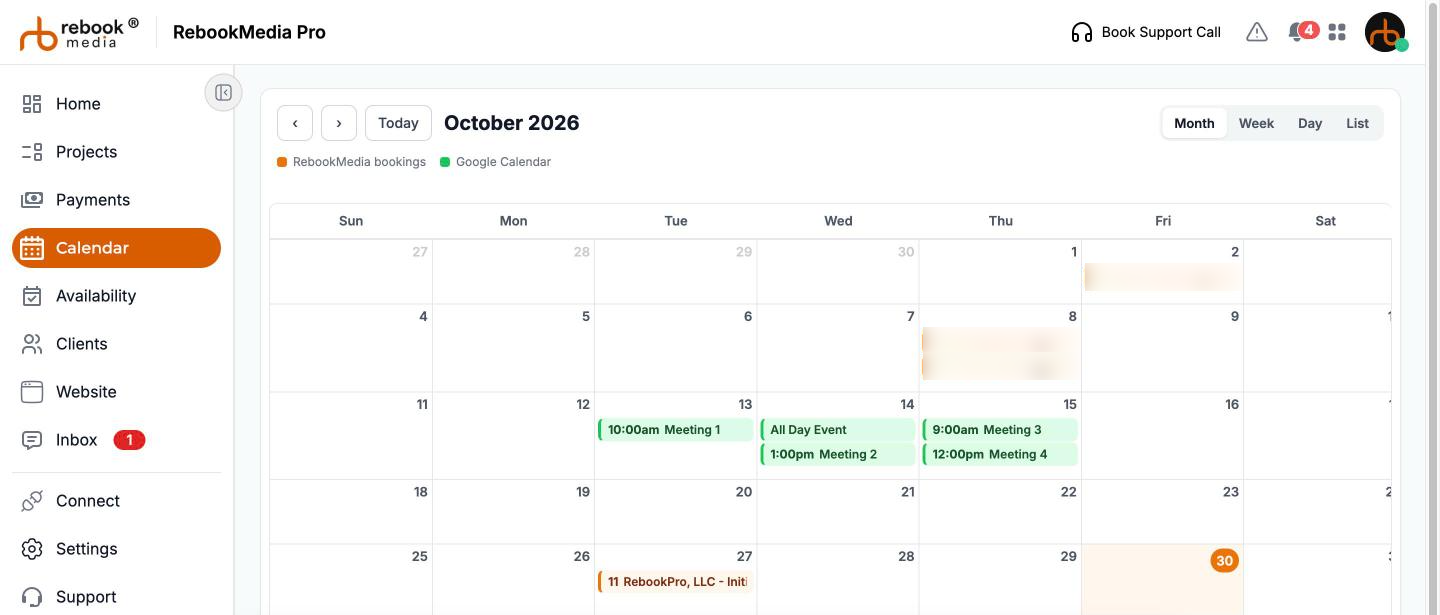
- With Google Calendar connected: the page shows the events on your Google Calendar, including the bookings and visits RebookMedia has added to it.
- Without Google Calendar: the page shows your RebookMedia visits, named "Order Booking: [order number]", or "Team job: [order number]" for jobs you are assigned to on a team. Cancelled visits aren't shown.
Click any event to see when and where it is and the client, with an Open project button for your bookings. Close it with Close, the X or Esc. On a phone, the details slide up from the bottom.
Connect Google Calendar
- Click Connect in the left menu.
- Under APIs, find Google Calendar and click Connect.
- Choose the Google account whose calendar you use for work, and allow every permission Google asks for.
- You come back to the Connect page with "Google Calendar Connected Successfully", and the button now says Disconnect.
Important: bookings use the main calendar of the Google account you connect. If you use more than one Google account, connect the one you check every day.
Team members connect their own Google Calendar the same way, so the jobs assigned to them go to their calendar.
What syncs with Google
From Google to RebookMedia: your busy times
- When a client books online, RebookMedia checks your Google Calendar for that day and doesn't offer times when you are busy. All-day events block the whole day.
- Times you already have RebookMedia visits are blocked too.
- If your Google Calendar can't be checked, no times are offered for that day rather than risk a double booking. Clients see "We couldn't check this professional's calendar right now."
See Set your availability and Set up online booking.
From RebookMedia to Google: bookings and visits
- Online bookings and the visits you schedule on a project are added to the Google Calendar of the professional doing the job. For team jobs, that is the team member's calendar.
- The event is named "[your business] - [visit name] at [address]", or "(online)" for online visits.
- Rescheduling a visit moves the event; cancelling a visit removes it.
- Project to-dos with a due date are added to the calendar of the person they are assigned to, and removed when the to-do is completed.
Events you had before connecting, and visits scheduled while you weren't connected, aren't added afterwards.
Online visits and Google Meet
When you schedule a visit and choose Online, RebookMedia creates a Google Meet link on the professional's Google Calendar and sends it with the invite. Click Use my own link instead to paste a Zoom, Microsoft Teams or other video link. Without Google Calendar, paste a meeting link.
Check a professional's day when scheduling a visit
- In a project, click Add New Visit (or the Add Visit tile).
- Enter the Visit Name, choose the Professional (if you have a team), the Date, Start, End and Time zone, and choose In person (add the address) or Online.
- Check the Schedule for [name] panel: it lists that professional's RebookMedia visits and Google events for the day, and marks anything that Overlaps. Team members' Google events show as "Busy".
- Leave Send visit updates to the client ticked to send your client an email and calendar invite, then click Schedule Visit.
The panel only warns you; you can still schedule over a conflict if you need to. To change or cancel a visit, use the Reschedule Visit and Cancel Visit icons on the visit. See Create and manage projects.
Calendar invites for you and your client
- Your client gets a "[your business] - Booking Invitation" email with the date, time and location. When your Google Calendar is connected, they are added as a guest on the Google event, so it appears on their calendar and updates when you reschedule. Otherwise the email includes a calendar invite to accept.
- You (or the team member doing the job) get a confirmation email, with a calendar invite attached when the visit isn't already on your Google Calendar.
- Rescheduled visits send "Booking Rescheduled" with the updated invite, and cancelled visits send "Booking Cancelled" so the event can be removed from calendars.
- Texts are sent too when phone numbers are verified.
Invites use your business name, so clients see them as coming from you.
Disconnect Google Calendar
On the Connect page, click Disconnect next to Google Calendar. You will see "Google Calendar Disconnected Successfully". Events already on your Google Calendar stay there; later changes are sent as emailed invites instead. To remove RebookMedia's access completely, also remove it in your Google account's security settings.
Troubleshooting
My calendar is empty, or says "Your calendar couldn't be loaded."
Your Google connection has probably expired or been removed in Google. On the Connect page, click Disconnect, then Connect again.
Bookings aren't appearing on my Google Calendar
- Check you connected the right Google account, and allowed every permission Google asked for. If unsure, disconnect and connect again.
- For team jobs, the event goes to the assigned team member's calendar, not the owner's.
- Visits scheduled before you connected aren't added.
My RebookMedia visits disappeared from the Calendar page after connecting
Once connected, the Calendar page shows your Google Calendar. Visits from before you connected are still in their projects, on the Visits tab.
Clients can't book a time I'm free
Check your Google Calendar for events at that time (including all-day events, which block the whole day), and your availability, booking buffer and driving time.
"This professional hasn't connected Google Calendar, so a Google Meet link can't be created."
Connect Google Calendar for that professional, or paste a meeting link instead.
"The visit was scheduled, but Google didn't create a Meet link."
Reschedule the visit to add a meeting link.
Still stuck? Book a free 30-minute call with our support team and we will walk through it with you.