Your business listing is your public profile in the RebookMedia directory: the page clients find when they search for your type of photography in their area, and where they can see your work, read your reviews and book you. Each category you offer has its own listing.
This article explains how to get each category listed, what clients see, how to collect reviews, and how to get found in search.
Where to find it: Your listing is managed from the Business Listing card on your Home page. On a phone, tap the menu icon at the top left first to open the menu.
In this article
- How listings work
- Get a category listed
- Preview your profile
- What clients see
- How clients find you in search
- Collect reviews
- Badges
- Tips to stand out
- Troubleshooting
- Related articles
How listings work
- Every category you offer, such as Real Estate Photography or Headshots, has its own listing, bio, portfolio and category image.
- Your Public Image (your photo or logo) is shared by all your listings.
- The Business Listing card shows one category at a time. Choose a category from its list to see that listing, or choose Add Category to add another.
- A category shows Listed (green) when its profile is complete, or Unlisted (red) with a progress bar while something is missing.
Get a category listed
On your Home page, choose the category on the Business Listing card and complete all four tiles. Missing items are highlighted; completed ones get a green check.
- Public Image: click the tile, upload a JPG, PNG or GIF up to 5 MB and click Save Changes. It is cropped to a square, so center your face or logo.
- Professional Bio: write 300 to 1,000 characters about you and your work in this category, or click Write my professional bio (Rebookgen AI) for a first draft to edit. Click Save Changes.
- Update Portfolio: opens your Portfolio page. Add at least one photo or video to this category (see Manage your portfolio).
- Category Image: the image or short video shown on your search card for this category. Upload a JPG, PNG or GIF up to 5 MB, or an MP4, MOV or WEBM video up to 50 MB.
When all four are done, the badge changes to Listed. Your listing goes live in the directory automatically shortly after; it is checked on a schedule, so allow a little time.
Good to know: images, videos and bios are checked automatically. If one is flagged as inappropriate it isn't saved, so upload a different image or revise your bio.
Preview your profile
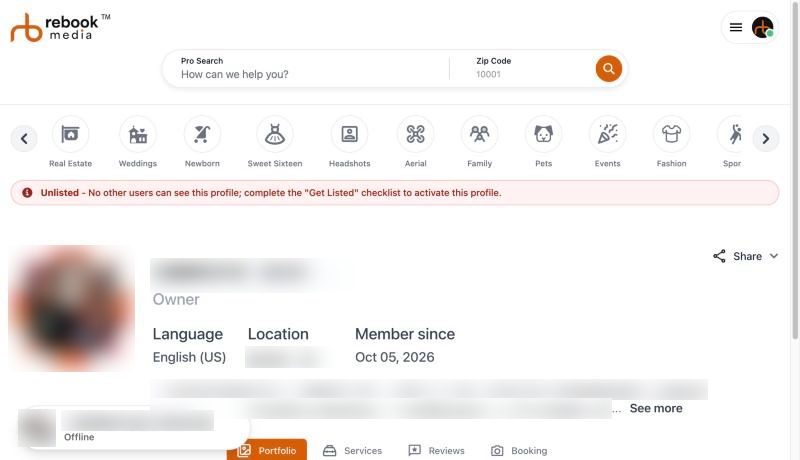
Your profile's address looks like rebookmedia.com/pro/your-name/your-category; open it to see your profile the way clients do. You can view it even while it is Unlisted. When you have no visitors yet, the Visits card on your Home page also has a View your profile button.
What clients see
- Your public image (with a verified shield if you are verified), name, title, languages, location and how long you have been a member.
- Your bio for that category.
- Tabs for Portfolio, Services, Reviews and Booking.
- A Share button for Facebook and WhatsApp, and a chat bubble to message you.
When your profile is shared, the link preview shows your short description, bio and public image.
How clients find you in search
Clients search the Directory by the service they need and their location. A listing appears in search when:
- the category is Listed and active;
- it has at least one active service (see Create and manage your services);
- your service areas cover the place the client searches (see Set up your service areas).
Your search card shows your category image, public image, business name, any badges, your category's short description as the headline, your rating and number of reviews, and a "From $" starting price. Clients can sort by price or best sellers and filter for verified professionals or best sellers.
Collect reviews
Reviews build trust and appear on your profile and search card. Ask each client after you deliver:
- Open the project and click Request Review.
- Either click Copy next to the Manual Share Link and send it yourself, or click Send Review Request via Email and confirm. Your client gets a "We'd love your feedback" email, and a text if their phone is verified.
- Your client rates Seller Communication, Quality of Delivery and Value of Delivery, and writes a comment. They don't need to sign in.
Review links work for 7 days from the first request, and each client can review a project once. Your rating is the average of all your client reviews and applies to all your listings.
Badges
- Verified: a green shield on your photo for professionals verified by RebookMedia.
- Best Seller: awarded automatically when you have at least 5 paid orders in the last 30 days.
- Top Rated: awarded automatically when your average client rating is 4.0 or higher.
Your badges appear in the Pro Account card on your Home page.
Tips to stand out
- Use a clear, friendly public image and a striking category image; they are the first things clients see.
- Write a short description that says what and where you shoot, for example "New Jersey Wedding Photography". It is your search headline.
- Put your strongest work first in your portfolio, and keep it current.
- Add every county you serve as a service area.
- Ask every happy client for a review.
- Turn on online booking so clients can book you straight from your listing (see Set up online booking).
Troubleshooting
My category says Unlisted
One of the four tiles isn't complete for that category. Bio, portfolio and category image are separate for each category, so check the category selected on the card.
It says Listed, but I don't appear in search
- Allow some time: listings go live on a schedule.
- Check the category has at least one active service.
- Check your service areas cover the place you searched.
- Check the category is active on the Categories page.
My bio or image didn't save
It may have been flagged by the automatic check. Revise your bio or upload a different image, then try again.
My client's review link has expired
Review links work for 7 days from the first request.
Visitors see "This professional is either temporarily unavailable or their status has expired"
That listing isn't live yet. Complete all four tiles and wait for it to go live, or schedule a support call if it stays this way.
Still stuck? Book a free 30-minute call with our support team and we will walk through it with you.