When you book a professional on RebookMedia, or a professional adds you as a client, you get a free client account. In it you can follow your projects, see your appointments, download your photos, pay invoices, sign contracts and message your professional, all in one place.
This article explains how to activate and sign in to your account, and what you can do in each part of it.
Where to find it: Sign in at rebookmedia.com, or with Client login on your professional's website. On a phone, use the bar at the bottom of the screen, or tap the menu icon at the top left for the full menu.
In this article
- Activate your account
- Sign in
- Your account on your professional's website
- Your account at a glance
- Your projects
- Download your photos
- Change or cancel an appointment
- Pay invoices and see your payments
- Sign contracts
- Messages
- Your settings
- Delete your account
- Leave a review
- Working with more than one professional
- Troubleshooting
- Related articles
Activate your account
- Open the welcome email from your professional ("Welcome to ..." or "You've been added as a client on ...") and click Activate Your Account. The link works once, for 7 days.
- Enter a password twice: 8 to 31 characters, with an upper case letter, a lower case letter, and a number or symbol. A checklist shows when each rule is met.
- Leave Sign out my other devices ticked if you like, and click Save and Sign In (or Submit and Login).
You are signed in and taken to your account. If the link has expired, click Send Me a New Link on the page that opens, or use Forgot password? when signing in.
Sign in
On your professional's website
- Click Client login at the top of their website.
- Sign in with Continue with Google, or your Email and Password. Tick Keep me signed in on your own device.
- No password? Click Email me a sign-in code, enter your email, click Send Code, and enter the 6-digit code we email you. It works for 10 minutes.
Google and sign-in codes work with the email address you booked with. You land in your account, in your professional's branding.
On rebookmedia.com
Click Log In, enter your email and password, and click Log In. If your Google or Apple account uses the same email as your RebookMedia account, you can also use Continue with Google or Continue with Apple.
Good to know: if a sign-in window offers to "Create my account with Google", don't click it: that creates a new business account. Use the email you booked with instead.
Forgot your password
Click Forgot password?, enter your email and click Send Link (or Send Reset Link). The link in the email works for 1 hour.
Your account on your professional's website
When you sign in on your professional's website, your account shows their logo, name and colors, and only your projects, payments and messages with them. Click Back to website to return to their site. To see everything from all your professionals, sign in at rebookmedia.com.
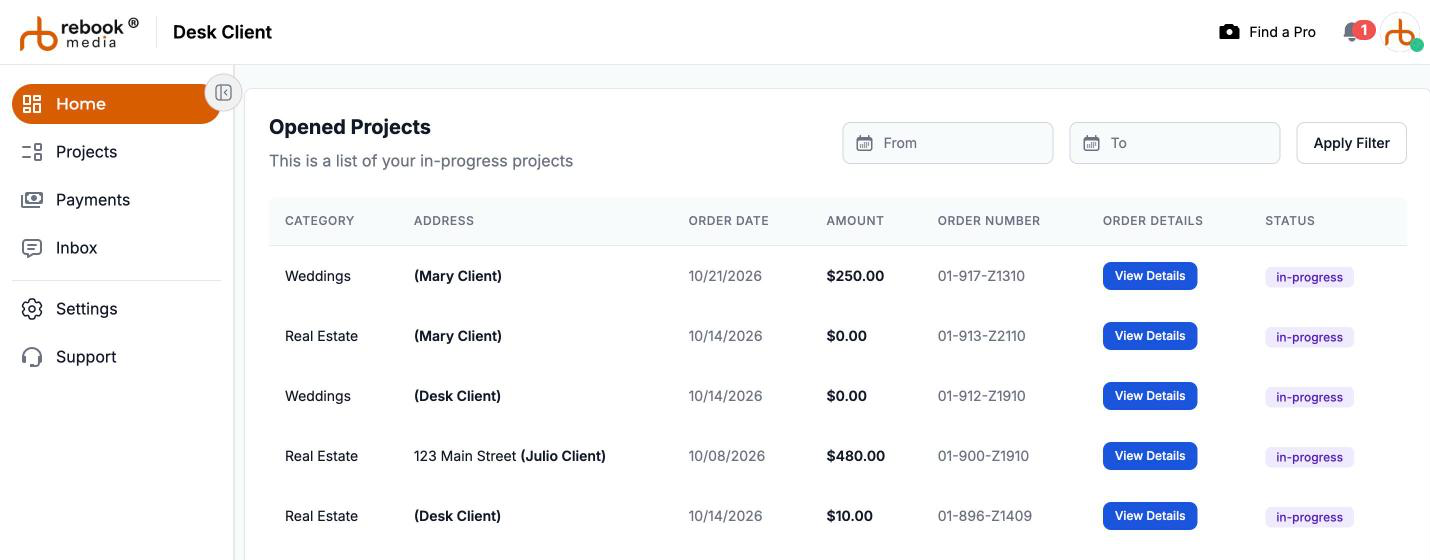
Your account at a glance
- Home: your open projects.
- Projects: all your projects, with their appointments, photos and payments.
- Payments: invoices to pay and payments you have made.
- Inbox: your messages with professionals.
- Settings: your photo, details, phone number, password and devices.
- Support: the Help Center. On a professional's website, Contact Support messages that professional.
Your projects
Open Projects to see your projects. Use the tabs (All, In progress, Completed, Cancelled), search by project, professional or order ID, and filter by date or payment. Switch between List and Gallery. Click a project to open it:
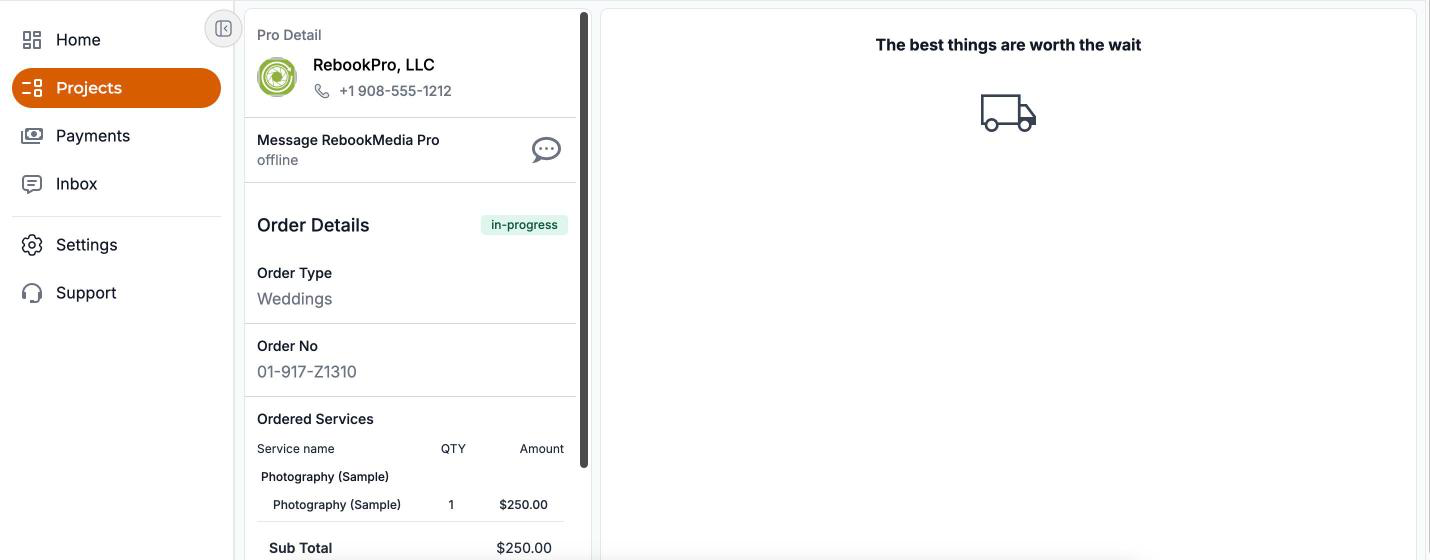
- Pro Detail: your professional's business name and phone, and a button to message them.
- Order Details: the services you booked, the total, and the latest invoice.
- Payment info: what you have paid, any refunds, and the balance due.
- Scheduled Visits: your upcoming appointments.
- Cancellation Policy: your professional's policy.
- Your photos and files.
Download your photos
When your professional marks your project as completed, you get an email ("Photos for ... are ready") with a View Photos button to your online gallery. Your files also appear on the project page:
- Click a photo to view it full screen, with zoom.
- Click the download icon on a photo, or click Select, choose photos and click Download. Download All downloads everything.
- On a computer, several files download as a ZIP; on a phone, they save to your Photos.
- Watermarked photos download one at a time, with the watermark.
Download your files soon: they are available in your account for 30 days after the project is completed. See View, favorite and download your photos.
Change or cancel an appointment
If your professional allows it, click Reschedule on the appointment under Scheduled Visits, and choose a new date and time. To cancel, message your professional. See Your appointments: see, reschedule or cancel.
Pay invoices and see your payments
Your professional emails you each invoice with a button to view and pay it. You can also open Payments:
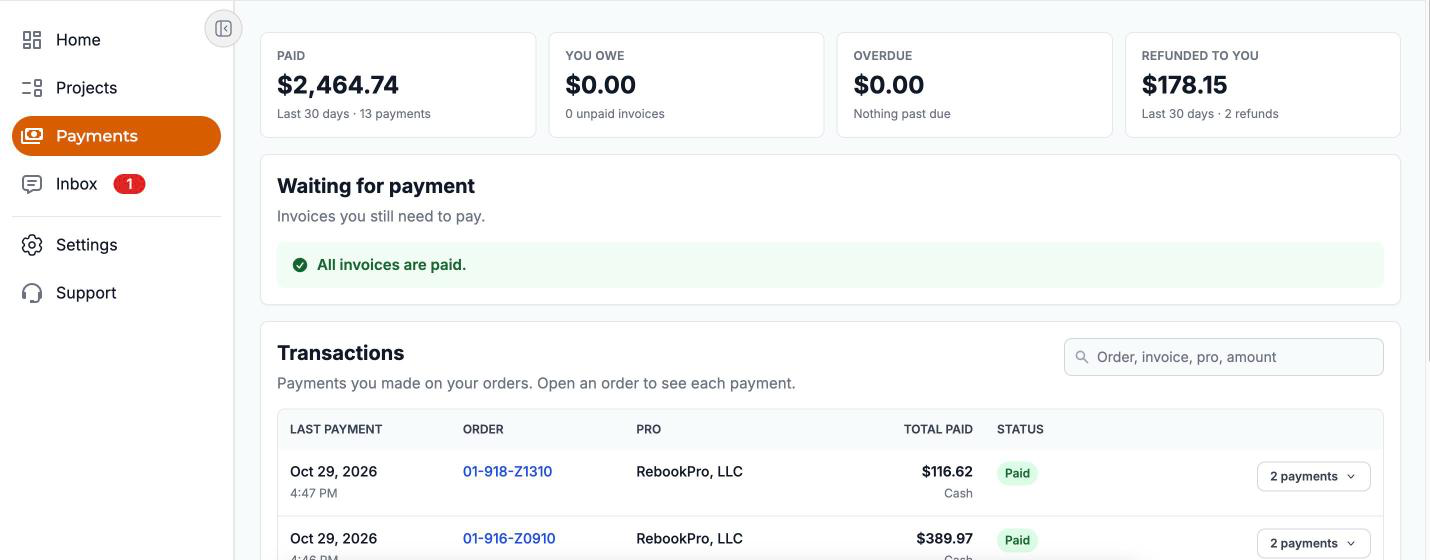
- The totals at the top show what you have Paid (last 30 days), what You owe, anything Overdue and anything Refunded to you.
- Waiting for payment: click View & Pay to pay securely by card through Stripe.
- Transactions: the payments you have made, with a PDF for each.
- Past invoices: paid and void invoices.
See Pay an invoice.
Sign contracts
If your professional sends you a contract, you get an email "Contract Ready for Your Signature". Click View & Sign Contract, read it, fill in any initials boxes, type your full name and click Sign Contract. You don't need to sign in. See Sign a contract from your professional.
Messages
Open Inbox to read and reply to messages from your professionals. Click the pencil (New message) to start a conversation with any of your professionals. When you get a new message, you also get an email ("New message from ...") with a View & Reply button, and a text if your phone is verified. See Message your professional.
Your settings
- User Settings: your profile photo, time zone, name and mobile number. Verify your mobile number to get text messages: save the number, click Verify, enter the 6-digit code and click Submit OTP. Your email address can't be changed here.
- Account > Password: click Email me a link (or Text me a link) to change your password; the link works once, for 1 hour. If you sign in with Google or a code, use it to Set a password.
- Account > Sessions: see the devices signed in to your account, and sign out any you don't recognize.
Delete your account
- Go to Settings > Account and click Delete Account.
- Read the warning and click Continue.
- Enter your password, or type DELETE if you don't have one, and click Delete Account.
You are signed out and can no longer see your projects, invoices or photos with any professional. Businesses keep their own records of your past bookings and payments. This can't be undone.
Leave a review
After your project, your professional may ask for a review. Click Leave a Review in the email (or text), rate them and share your experience. See Leave a review for your professional.
Working with more than one professional
You can use the same account with several professionals. Sign in at rebookmedia.com to see all their projects, payments and messages together; on a professional's own website you see only theirs.
Troubleshooting
"That email and password don't match"
If you haven't activated your account yet, use the link in your welcome email, or click Forgot password? to set a password. You can also use Email me a sign-in code on your professional's website.
"There's no account for ... here yet."
Use the email address you booked or bought photos with.
The activation or reset link opens someone else's account
Someone else is signed in on that browser. Sign out, or open the link in a private window.
"This link has expired"
Click Send Me a New Link. Activation links work for 7 days and reset links for 1 hour, and each works once.
I can't see a project from another professional
On a professional's website you only see their projects. Sign in at rebookmedia.com to see all of them.
"Order Expired"
Project files are available for 30 days after completion. Message your professional if you still need them.
Still need help? For anything about your booking, photos or invoices, message your professional from your account's Inbox. For help with your RebookMedia account, email support@rebookmedia.com.