When someone buys photos from your gallery or website, the money goes to your Stripe account, the buyer gets a receipt and their download link, and you get an email. This article shows where to see your store orders, what each figure means, how to resend a receipt, and how to refund an order.
Where to find it: At the top right of the page, click the grid icon (Navigation Panel) and choose Storefront, then click Store in the left menu.
In this article
- How you get paid
- Your new sale email
- The Orders page
- Order details
- Receipts
- How buyers download their photos
- Buyers become clients
- Store dashboard
- Store sales in your reports
- Refund an order
- Troubleshooting
- Related articles
How you get paid
- The buyer pays by card, Apple Pay or Google Pay, straight into your own Stripe account.
- Stripe pays it out to your bank on your usual Stripe schedule.
- From each sale, RebookMedia's store fee (the percentage for your plan, on the price before tax) and Stripe's card fee are taken.
- Any sales tax collected is included in the payment. It is yours to pay to the state.
Your new sale email
For each sale you get an email, "New photo sale: $X from [buyer]", with the order, the photos, the sale before tax, any sales tax collected, the store fee, the card fee and what you keep. It also tells you whether the buyer is your client on that project, was added to your Clients, or was already one of your clients. Click View store orders to open the order.
The Orders page
Open Store > Orders. Each row is one order, numbered like S-0001:
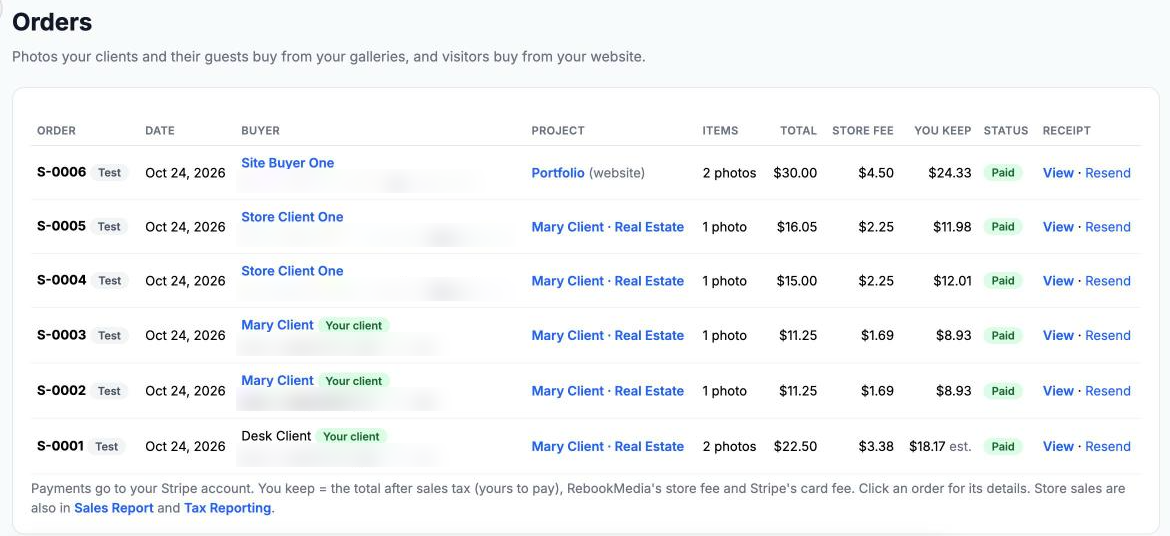
- Buyer: their name (a link to their client profile) and email. Your client means they are the client on that project.
- Project: the gallery they bought from, or Portfolio (website).
- Items: how many photos, or Whole gallery.
- Total (what the buyer paid, including tax), Store fee and You keep (after sales tax, the store fee, the card fee and any refund). "est." means Stripe hasn't reported its exact fee yet.
- Status: Paid, Partly refunded, Refunded, or Awaiting payment when a buyer started checkout but didn't pay. You don't need to do anything with those: an unpaid checkout is cancelled after a day and leaves the list.
- Receipt: View or Resend.
The page shows your latest 200 orders. On a phone, swipe the table sideways to see every column.
Order details
Click an order to open its details:
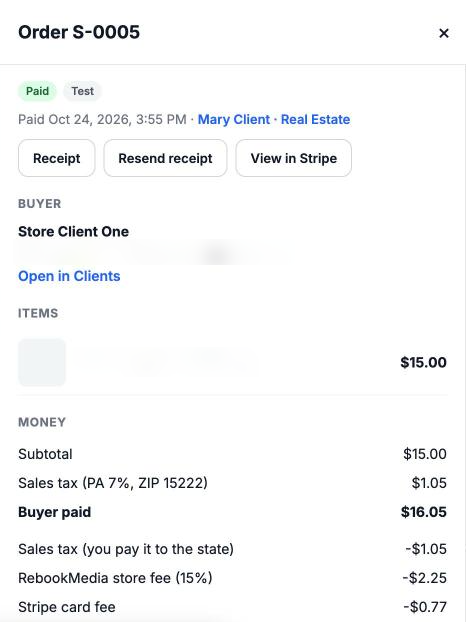
- When it was paid, and a link to the project.
- Buttons for the Receipt, Resend receipt and View in Stripe.
- Buyer: name, email, phone, and Open in Clients.
- Items: each photo, or the whole gallery, and any client discount.
- Money: subtotal, client discount, sales tax (with the state, rate and ZIP), what the buyer paid, then the sales tax you pay to the state, the store fee, the Stripe card fee and what you keep.
- Refund: the Refund and Partial refund buttons, and every refund made so far (see Refund an order below).
- Payment: the card used (for example "Visa (Apple Pay)") and until when the downloads work.
- Emails: when the receipt and your new sale email were sent and, when the buyer asked for texts at checkout, when their download link went out by text.
Receipts
The buyer gets an email from your business, "Your photos from [your business] (order S-0001)", with a Download your photos button, the order, the total paid, your refund policy and a link to view or print the receipt. Replies go to you.
- The receipt page has a Print / Save as PDF button and stays available even after the gallery is archived.
- To send the receipt again, click Resend on the Orders page, in the order details or on the client's profile. You will see "Receipt sent to [email]." You can resend once every couple of minutes.
How buyers download their photos
- Right after paying, from the thank-you window: Download all, Save to Photos on a phone, or Download as ZIP.
- From the Download your photos link in their receipt email, on any device, without signing in.
- From Your purchases in the gallery's cart, when they are signed in.
Buyers get the original files without a watermark. Their download link works for 1 year after the purchase, as long as the gallery is online; if you archive the gallery, downloads stop. Photos a buyer already owns can't be bought again.
Buyers become clients
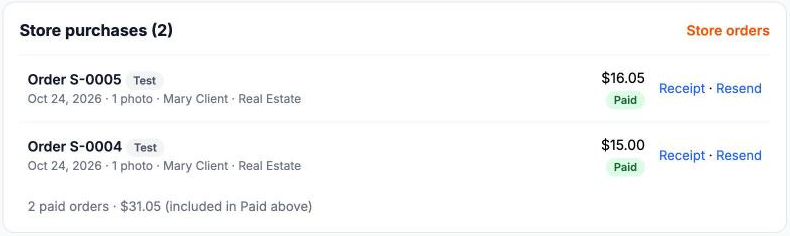
After paying, a buyer who isn't already your client is added to your Clients with the tag Store buyer, so you can follow up later. On a client's profile, the Store purchases card lists their orders with Receipt and Resend links, and their store spending is included in Paid. See Manage your clients.
Store dashboard
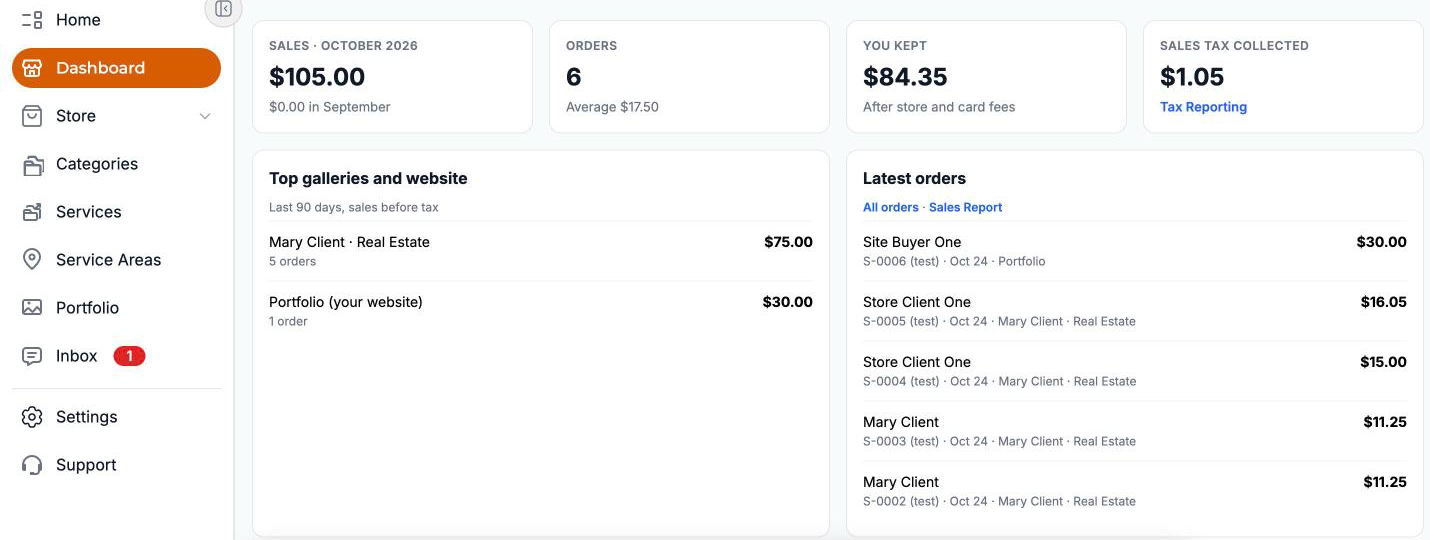
Open Dashboard in the Storefront menu for this month's sales, number of orders, what you kept after fees and the sales tax collected, your top galleries over the last 90 days, and your latest orders.
Store sales in your reports
- Sales Report: store sales are listed as "Store sale". Use Show > Photo store only to see just the store. "Photo store" also appears in Top services.
- Tax Reporting: taxed store sales are counted on the day they were paid, by state and ZIP area.
- Refunds are taken off on the day they were made: in the Sales Report under Refunded, and in Tax Reporting as "Store refund" with their share of the tax.
See Sales and Visitors reports and Sales tax reporting.
Refund an order
You can refund a store order, in full or in part, from its order details. The money goes back to the buyer's card from your Stripe balance. Your refund policy is shown to buyers at checkout and on their receipt.
- On the Orders page, click the order.
- In the Refund section, click Refund $X to refund everything that is left, or click Partial refund, enter the amount and click Send refund.
- The button turns red and asks you to click again. Click it again to send the refund.
What happens next:
- RebookMedia's store fee: if you refund within 24 hours of the sale, the store fee comes back to you (for a partial refund, the same share of it). After that it isn't returned. The Refund section shows the exact deadline for each order.
- Stripe's card fee: Stripe keeps it on every refund.
- The order: a full refund shows Refunded and the buyer's download link stops working. A partial refund shows Partly refunded and the downloads keep working. You can refund the rest later.
- Emails: the buyer gets an email from your business, "Your refund from [your business]", with the amount, the card and when to expect it (usually 5 to 10 business days). You get "Refund sent: $X to [buyer]". You can change the buyer's email in Settings > Templates (the Store Refund template).
- Receipt and totals: the buyer's receipt shows the refund. You keep, the client's Paid total and your reports take it out.
Good to know: a refund you make in your Stripe dashboard (View in Stripe in the order details) is recorded in RebookMedia too, with the same store fee rule and the same emails.
Troubleshooting
An order says Awaiting payment
The buyer started checkout but didn't finish paying. If they pay soon, it changes to Paid. If they don't, the checkout is cancelled after a day and the order leaves the list.
There is no Refund button
The buttons show only on paid orders that still have something to refund. A fully refunded order shows its refunds instead.
"Stripe couldn't refund this order"
Stripe refused the refund, for example because your Stripe balance is too low. The message says why. Add funds or wait for new payments in Stripe, then try again.
"You keep" shows est.
Stripe hasn't reported its exact card fee yet, so it is estimated at 2.9% + 30 cents. It updates once Stripe reports it.
A buyer says their download link expired
Links work for 1 year after the purchase while the gallery is online. If the gallery was archived, or the year has passed, send the buyer their photos another way.
"The receipt was just sent. Try again in a couple of minutes."
Wait a couple of minutes before resending. Ask the buyer to check their spam folder too.
Still stuck? Book a free 30-minute call with our support team and we will walk through it with you.