Two reports show how your business is doing: the Sales Report shows the money you received, refunds, fees and your top services, and the Visitors report shows who visits your profile and website, where they come from and how many become inquiries and orders.
Where to find it: On your Home page, click Report on the Revenue card for the Sales Report, or on the Visitors card for the Visitors report. On a phone, tap the menu icon at the top left first to open the menu.
In this article
- The Sales Report
- Revenue and Top services charts
- Payments list
- The Visitors report
- Where visitors come from
- Inquiries and new orders
- Download your reports
- Troubleshooting
- Related articles
The Sales Report
Choose the period (Last 7 days, 15, 30 or 90 days, or Last 12 months) and what to show: Projects + store, Projects only or Photo store only. Days follow your time zone, and today is included. The tiles show:
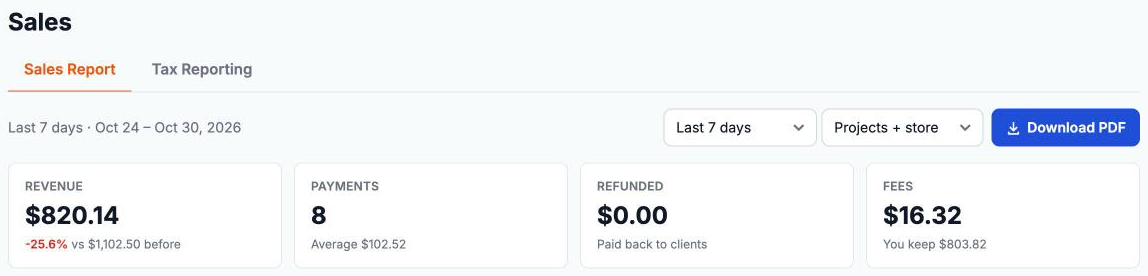
- Revenue: payments minus refunds, with the change compared with the period before.
- Payments: how many, and the average payment.
- Refunded: paid back to clients, including photo store refunds.
- Fees: card and store fees, and what you keep.
Revenue and Top services charts
- Revenue: payments minus refunds by day, week or month, depending on the period.
- Top services: your best-selling services on orders paid in the period (up to 8), including "Photo store". It is based on the services' prices on those orders, not only the money received in the period.
Payments list
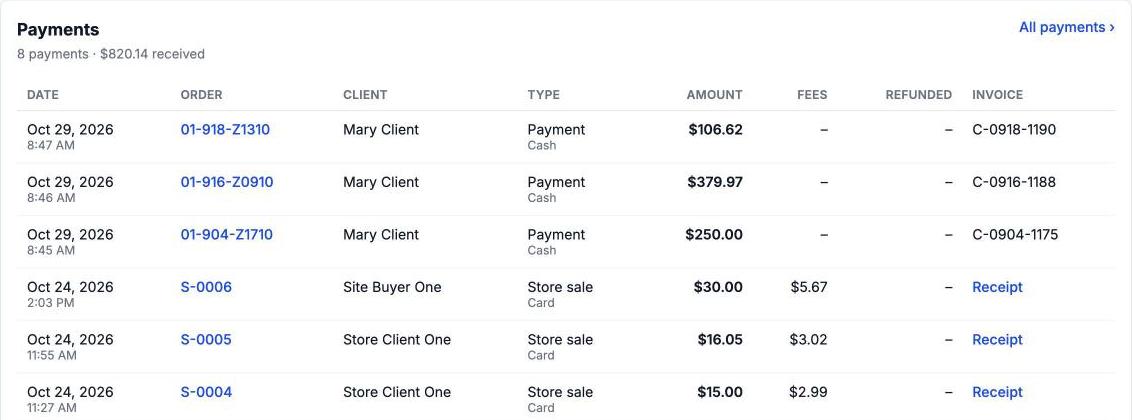
Every payment in the period: Date, Order, Client, Type (Payment or Store sale, and how it was paid), Amount, Fees, Refunded (what was refunded from that payment or store order) and Invoice (or a Receipt link for store sales). Click an order to open it. All payments opens your Payments page.
The Sales Report has a second tab, Tax Reporting. See Sales tax reporting.
The Visitors report
Choose a period (Last 30 days to start) and a category, or all categories. The tiles show:
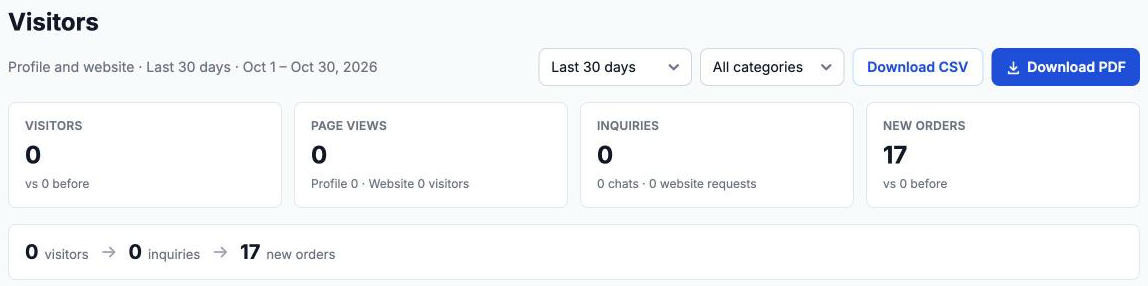
- Visitors: different people who visited your profile and website.
- Page views: split between your profile and your website.
- Inquiries: chats and website requests.
- New orders: projects created in the period.
A row below shows the path from visitors to inquiries to new orders, and the Visitors chart shows visitors per day, with the period before as a dashed line.
Where visitors come from
- Where visitors come from: read from the link they arrived on. Visitors who typed your address or came from an app without a tagged link show as "Direct or other".
- Top pages: your most visited pages.
- Devices and places: phone, tablet or computer, and where your visitors are.
Tip: bots, you, your team and RebookMedia staff aren't counted, so the numbers are real visitors.
Inquiries and new orders
The report lists your latest inquiries (with a link to your Inbox) and your latest new orders in the period, with more to see the rest.
Download your reports
- Sales Report: Download PDF.
- Visitors report: Download CSV or Download PDF.
Troubleshooting
The report opens on a different period from my Home page
The reports open on their own default period. Choose the period you want at the top.
My Visitors report is empty
There were no visitors in that period. Try a longer period, and share your profile and website link to bring visitors in.
A payment is missing from the Sales Report
Check the period and the Show filter. Refunds are taken off Revenue in the period they were made.
Still stuck? Book a free 30-minute call with our support team and we will walk through it with you.