The Tax Reporting tab adds up the sales tax you collected, by month, quarter or year and by state, so you have the figures ready when you file. You can download it as a CSV or a PDF for your accountant.
Where to find it: On your Home page, click Report on the Revenue card, then open the Tax Reporting tab. From the Store dashboard, click Tax Reporting on the Sales tax collected tile. On a phone, tap the menu icon at the top left first to open the menu.
In this article
- How tax is counted
- The Tax Reporting tab
- Summary
- Tax by state
- Exempt sales
- Payments with tax
- Download for your accountant
- Good to know
- Related articles
How tax is counted
- Tax counts on the day you are paid, in your own time zone.
- When an order is paid in parts, each payment carries its share of the order's tax. For example, a deposit of half the total carries half the tax.
- A refund takes its share of the tax back.
- Photo store sales are included with their exact tax, on the day they were paid. A store refund takes back its share of that tax on the day of the refund (listed as "Store refund").
Check the amounts with your accountant or your state before you file.
The Tax Reporting tab
Choose By month, By quarter or By year, and the year. The tiles show:
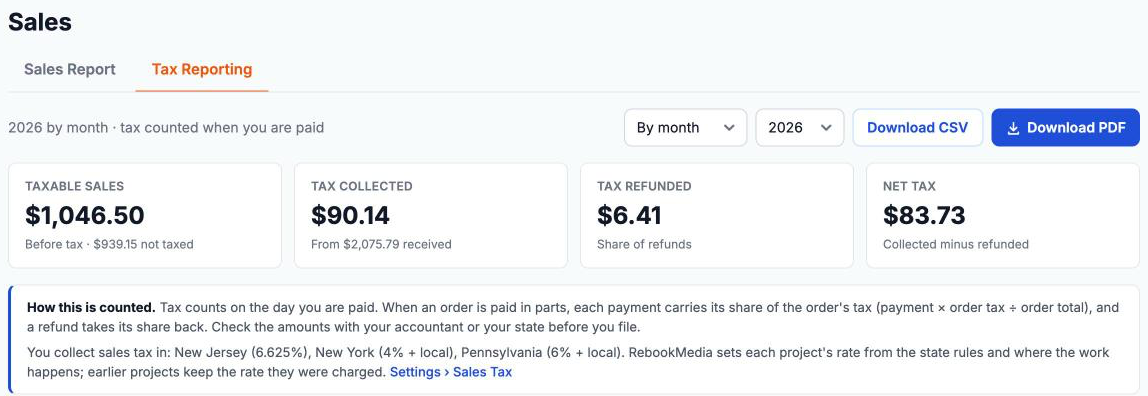
- Taxable sales: sales on taxed lines, before tax, and how much wasn't taxed.
- Tax collected: the tax in the payments you received.
- Tax refunded: the tax share of your refunds.
- Net tax: collected minus refunded.
Below the tiles, a note lists the states where you collect.
Summary
One row per month, quarter or year: Sales, Taxable sales, Not taxed, Tax collected, Tax refunded and Net tax, with a total.
Tax by state
Each state you collected tax in, with its local areas underneath (the area name, ZIP and rate), and its taxable sales, exempt sales, tax collected, refunded and net tax.
- Local areas come from the project's ZIP code and are estimates. Check them against your state's jurisdiction codes before you file.
- "Area not recorded" means projects taxed before RebookMedia saved the ZIP code (October 2026).
Exempt sales
Payments on tax-exempt projects, with the date, order, client, state, reason (or the client's certificate type and number) and the exempt amount. Keep the certificates: states can ask for them. See Tax-exempt clients and certificates.
Payments with tax
Every payment, refund, store sale and store refund that carried tax, with its amount, its tax share and the order's total tax.
Download for your accountant
- Download CSV: a spreadsheet with all four sections. Its "Tax % of order" column is each payment's share of the order's tax, not the tax rate.
- Download PDF: a printable Sales Tax Report with the same sections.
Good to know
- The Summary's Taxable sales can include taxed lines on projects that ended up with no tax (exempt projects, or projects in states where you don't collect), while Tax by state lists only states where tax applied. Use Tax by state for your state filings.
- If an older payment seems to be missing, schedule a support call and we will check it with you.
Still stuck? Book a free 30-minute call with our support team and we will walk through it with you.