RebookMedia uses Stripe, a secure payment service, to take card payments from your clients: deposits when they book online, and payments on the invoices you send. Connect your own Stripe account once, and the money from your clients goes to your Stripe account and then to your bank.
This article covers connecting Stripe, what it unlocks, fees, payouts and disconnecting.
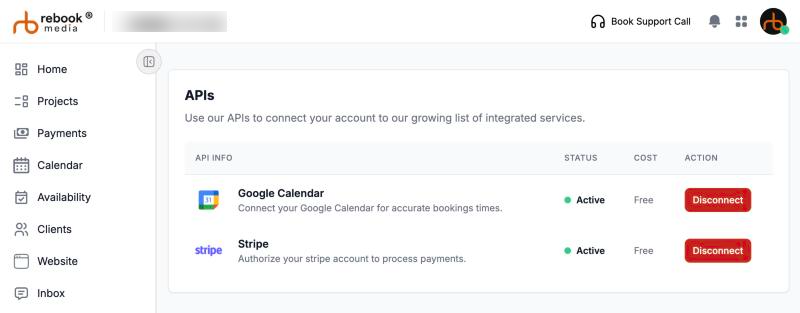
Where to find it: Click Connect in the left menu and find Stripe under APIs. On a phone, tap the menu icon at the top left first to open the menu.
In this article
- What you need
- Connect your Stripe account
- What Stripe unlocks
- Fees
- When you get your money
- Disconnect Stripe
- Troubleshooting
- Related articles
What you need
- A Stripe account. If you don't have one, you can create it during the steps below; Stripe asks for your business details and the bank account for your payouts.
- To be the owner of the business account. Team members connect Stripe from their own Earnings page to receive pay (see Work as a team member).
Connect your Stripe account
- Click Connect in the left menu.
- In the Stripe row ("Authorize your stripe account to process payments."), click Connect.
- Stripe opens. Sign in to your Stripe account, or create one, and follow Stripe's steps to authorize RebookMedia.
- You come back to the Connect page with "Stripe Connected Successfully". The Stripe button now says Disconnect, which shows you are connected.
Tip: finish setting up your Stripe account, including your bank details and identity checks, in your Stripe dashboard. Stripe can hold payouts until your account is complete.
What Stripe unlocks
- Invoices: clients pay your invoices by card online. See Send invoices and get paid.
- Deposits: clients pay a deposit when they book online. Without Stripe, services with a deposit can't be booked online. See Set up online booking.
- Card payments you take yourself from the project page.
- Paying team members through Stripe. See Pay your team members.
- Booking rules: Calendar Off-Set, Booking Buffer and Driving Time on the Bookings tab need Stripe connected (with your terms and a verified profile).
Cash and check payments you record don't need Stripe.
Fees
- Your client pays exactly the amount of the invoice or deposit; no fee is added for them.
- A processing fee is taken from each online payment, depending on your plan.
- You can see the fee and what you get for every payment on the Payments page, under Transactions, and in the payment email you receive.
Payments are in US dollars.
When you get your money
Payments arrive in your Stripe account, and Stripe pays them out to your bank on your Stripe payout schedule. Check or change the schedule, and see every payment and payout, in your Stripe dashboard.
Disconnect Stripe
On the Connect page, click Disconnect in the Stripe row. You will see "Stripe Disconnected Successfully". This happens straight away, without asking you to confirm, and clients can no longer pay online or pay deposits until you connect again. To remove RebookMedia's access completely, also remove it in your Stripe dashboard's connected apps settings.
Important: to switch to a different Stripe account, disconnect and then connect again with the new account. Payments already made stay in the account that received them.
Troubleshooting
"The Stripe connection could not be verified. Please try again from RebookMedia."
The connection was cancelled or timed out. Go back to the Connect page and click Connect again, and finish all of Stripe's steps.
"Stripe could not be connected. Please try again."
Try again in a few minutes. If it keeps happening, schedule a support call.
"To send the invoice, please connect your account with Stripe"
Connect Stripe first, then send the invoice again.
Clients see "This professional can't take deposits online right now."
Your Stripe account isn't connected. Connect it, or turn off the deposit on your services.
I can't see the Stripe row
Only the business owner can connect Stripe. Team members use Connect Stripe on their Earnings page.
I haven't received a payout
Check your Stripe dashboard for your payout schedule and any steps Stripe needs you to complete.
Still stuck? Book a free 30-minute call with our support team and we will walk through it with you.