RebookMedia can work out the sales tax rate for each project from each state's rules, so you never type a rate. You turn on sales tax, tell us the states where you collect it, and choose which lines on a project are taxed. This article explains the settings, how the rate is chosen, and what your clients see.
Where to find it: Click Settings in the left menu and open the Sales Tax tab. On a phone, tap the menu icon at the top left first to open the menu.
Important: sales tax works for US businesses and US addresses. Rates in states with local taxes are estimates by ZIP code. This isn't tax advice: check with a tax professional, and you stay responsible for filing and paying the tax you collect.
In this article
- How sales tax works on RebookMedia
- Turn on sales tax
- Your business address
- States where you collect
- Guide: what states tax
- Tax a project
- Choose the tax location
- Make a project tax exempt
- When the rate is locked
- What your clients see
- Photo store orders
- Troubleshooting
- Related articles
How sales tax works on RebookMedia
- You turn on Collect sales tax and list the states where you are registered to collect.
- On each project, you choose which lines are taxed with the line's +Tax link. Nothing is taxed automatically on projects.
- RebookMedia picks the rate from where the work happens (the shoot address), or your business address in states that tax at the seller's address.
- Tax is added on top of your prices. When a project has a discount, tax is worked out on the discounted price.
- Once an invoice is sent or a payment comes in, the project's rate is locked.
Turn on sales tax
- Make sure your business address is filled in (Settings > Business). It sets your home state.
- On the Sales Tax tab, turn on Collect sales tax. You will see "Collecting sales tax."
- Your home state is added to your list automatically.
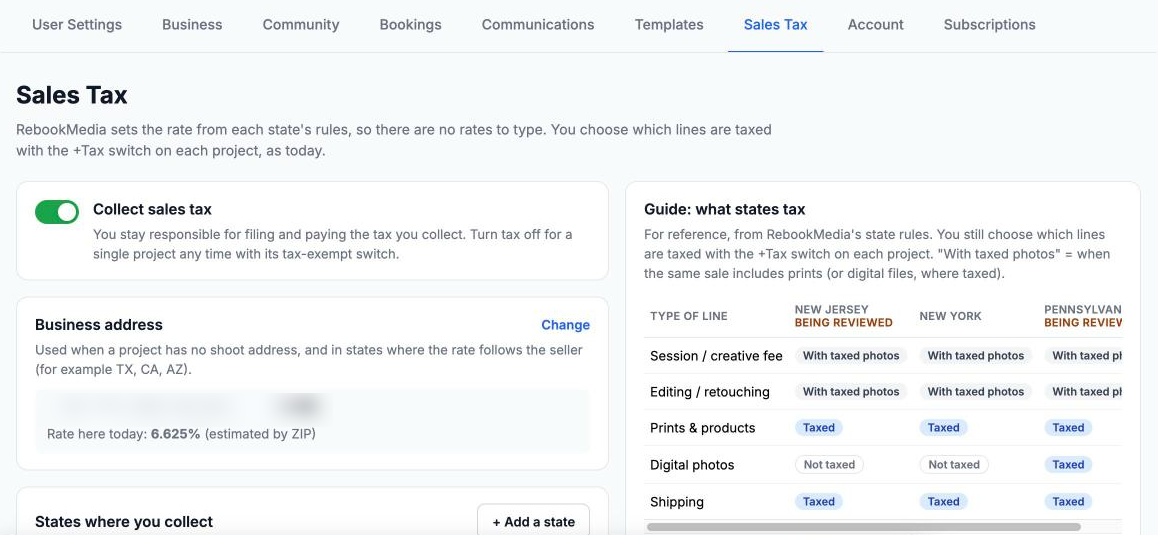
Turning it on or off also updates the tax on your draft projects; a message tells you how many were updated. Projects already sent or paid don't change.
Your business address
The Business address card shows the address from Settings > Business and the rate there today, for example "Rate here today: 6.625% (estimated by ZIP)". Click Change to edit it. It is used when a project has no shoot address, and in states where the rate follows the seller (for example TX, CA and AZ).
States where you collect
Your home state is on by default. Add other states only where you are registered to collect; most photographers only need their home state. Projects in states not listed here aren't taxed.
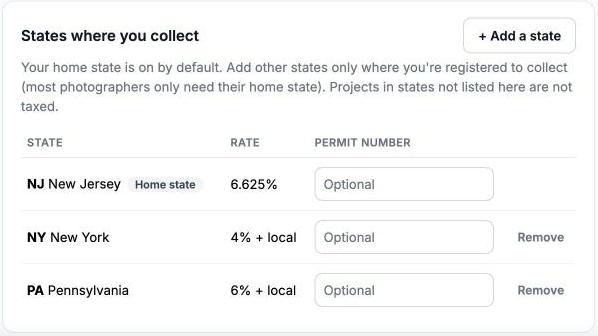
- Click + Add a state, pick the state and click Add.
- The Rate column shows the state rate, for example "6.625%", "4% + local", "Local only" or "No sales tax".
- Type your Permit number (optional) for your own records. It saves when you leave the box. It isn't shown to clients or on reports.
- Click Remove and then Remove? to stop collecting in a state. Your home state stays on; turn off Collect sales tax to stop collecting altogether.
Guide: what states tax
This guide shows, for each of your states, whether a session or creative fee, editing, prints and products, digital photos and shipping are usually taxed: Taxed, Not taxed, With taxed photos (taxed when the same sale includes prints, or digital files where those are taxed) or Not taxed if listed separately. Click See all states' rules for every state.
It is a reference to help you decide which lines to tax. A state marked Being reviewed is still being checked by a tax professional, so check your state's own guidance too.
Tax a project
- Open the project. In the Order Summary, each line has a link: +Tax turns tax on for that line, and No Tax turns it off again.
- The tax appears in the project's Sales Tax total.
- Click the pencil next to Sales Tax to see the state, the rate and the address it came from.
Services clients book online arrive untaxed, so turn on +Tax for the lines that should be taxed before you send the invoice.
In the Sales Tax window you may see:
- "[State] [rate] - shoot address": the rate was set from the visit's address.
- "[State]: no tax": you don't collect in that state. If you are registered there, add it in Settings > Sales Tax.
- "No address yet": add the shoot address to a visit, or your business address in Settings.
- "Local tax not included yet": the local rate for that ZIP code isn't loaded yet, so only the state rate is used. The full rate is likely higher; check it before you send the invoice.
Choose the tax location
RebookMedia uses the address of the latest in-person visit, then the project address, then your business address. When a project has both a shoot address and your business address, the Sales Tax window lets you choose Shoot address or Business address. Use your business address when the visit was only a consultation or the work happens at your studio.
Make a project tax exempt
- Click the pencil next to Sales Tax on the project.
- Turn on This project is tax exempt.
- Pick a reason: Resale certificate, Nonprofit, Government, Delivered out of state or Other (add a note for Other).
- Click Apply. You will see "This project is tax exempt."
For a client who is always exempt, add their certificate once on their client profile instead. See Tax-exempt clients and certificates.
When the rate is locked
Once the first invoice goes out or the first payment comes in on a project with taxed lines, its rate is locked. The window then shows "[State] [rate] - locked". Lines you add later are taxed at the same rate, and later changes to rates, your states or the client's certificate don't change it. The tax location and the exempt switch can't be changed after that.
What your clients see
Invoices, emails and receipts show a Sales Tax amount. The rate, state and your permit number aren't shown.
Photo store orders
In the photo store, tax is added automatically: only for digital photos, only where digital photos are taxed and only in states where you collect, using the buyer's billing ZIP code. See Set up your photo store.
Troubleshooting
"Add your business address (Settings > Business) first: it sets your home state."
Add your business address in Settings > Business, then turn on Collect sales tax again.
My project shows no tax
- Check that the lines have tax turned on (they show No Tax as the link).
- Check that the project's state is in your list of states.
- Check that the project, or the client, isn't tax exempt.
"The tax on this project is locked"
An invoice was sent or a payment came in, so the rate, location and exemption can't change.
"Only the account owner can change sales tax."
Sales tax settings, the project Sales Tax window and client certificates are for the account owner only.
The rate looks wrong
Check the address on the latest visit, or switch the tax location. Local rates are estimates by ZIP code and are reviewed regularly; if a rate is still wrong, schedule a support call.
Still stuck? Book a free 30-minute call with our support team and we will walk through it with you.