Your business settings decide how your business appears to clients: the name on your emails, invoices and profile, your logo, the watermark on your photos, your phone number and your business address.
Where to find it: Click Settings in the left menu and open the Business tab. On a phone, tap the menu icon at the top left first to open the menu.
In this article
- Public image
- Logo
- Watermark
- Business information
- Your business address
- Where your details appear
- Troubleshooting
- Related articles
Public image
Your public image is the photo or logo shown on your RebookMedia profile and in search results. It is needed for your categories to be listed.
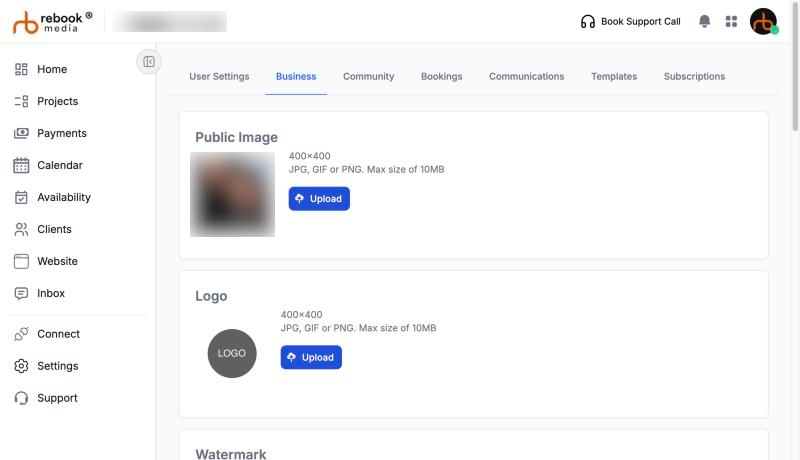
- In Public Image, click Upload.
- Choose a JPG, GIF or PNG up to 10 MB. 400 x 400 pixels works well; it is cropped to a square.
Logo
Your logo appears on the emails, receipts and order pages your clients see, and on your website. Click Upload in Logo and choose a JPG, GIF or PNG up to 10 MB. A square logo on a plain background looks best.
Watermark
Your watermark protects photos in client galleries when you turn watermarks on for a project. In the Watermark card, click a style (Diagonal name repeat, Proof grid, Fine-line mesh, Your logo, repeated or Your logo, centered) and adjust the text, color, opacity and size; the preview updates as you go, and everything saves automatically. See Protect your photos with watermarks.
Good to know: images are checked automatically, and an image flagged as inappropriate isn't saved ("Your image was flagged as inappropriate. Please upload a new image.").
Business information
- Business Legal Name: your registered business name, for example "Jane's Photos, LLC".
- Business Display Name: the name clients see on your emails, invoices, receipts, booking invites and profile, for example "Jane's Photos".
- User Role: your title, for example "Owner".
- Business Phone Number: a 10-digit US number. Clients see it on their order page.
Click Save. You will see "Your changes have been saved successfully!"
Your business address
- In Business Address, start typing your address and pick it from the list.
- Check the Street Address, City, State and Zip/postal code that are filled in, and add a Unit/Suite if you have one. County and Country are filled in for you.
- Click Save.
Your address is used to show you in search near your clients, to work out driving time for bookings, and as the starting point for your service areas. Clients don't see your street address on your profile.
Tip: always pick your address from the suggestions, so its location is found correctly.
Where your details appear
- Emails to clients: sent from your Business Display Name, and replies come to your email.
- Invoices and receipts: your display name and logo.
- Booking invitations: "[your display name] - Booking Invitation".
- Your profile and search results: your display name and public image.
- Templates: the [pro] Business Name token uses your display name. See Use templates for emails and contracts.
Troubleshooting
"Invalid file type" or "File is too large"
Upload a JPG, PNG or GIF (PNG or JPG for watermarks) up to 10 MB.
"Phone number must be 10 digits."
Enter a 10-digit number without the country code, for example 555-123-4567.
I can't change the business name
Team members can't change the business name; only the owner can.
My new name isn't on an invoice I already sent
Changes apply to emails and invoices you send from now on.
Still stuck? Book a free 30-minute call with our support team and we will walk through it with you.