Services are what your clients book and pay for. Every service belongs to one of your categories, has one or more price options (called variants), and can include a deposit and the team members who provide it. Your active services are shown on your booking page and your website.
This article walks you through the Services page: adding a service, pricing, deposits, add-ons, your team, and keeping your list organized.
Where to find it: At the top right of the page, click the grid icon (Navigation Panel) and choose Storefront, then click Services in the left menu.
In this article
- Before you start
- The Services page
- Add a new service
- Choose a pricing type
- Add variants (price options)
- Assign team members and pay
- Edit a service
- Require a deposit
- Offer add-ons
- Turn on, move or duplicate a service
- Delete a service
- Plan limits
- Troubleshooting
- Related articles
Before you start
- Add at least one category. Services are organized by category (for example Real Estate or Headshots). If you have none yet, the page shows "Add a category first" with a Go to Categories button. See Manage your categories.
- Add your team first (optional). If other people provide this service, add them on the Team page first so you can assign them.
- Connect Stripe to take payments online. Clients can only pay deposits online once Stripe is connected. See Connect Stripe to get paid.
The Services page
- Category tabs: one tab per category, with how many services each has. Click a tab to see its services. Greyed tabs are inactive categories, whose services clients don't see. Click + Category to go to the Categories page.
- The list: each service with its photo or video, its options ("1 option", "3 options"), its price ("From $150" when options differ), its team and whether it's Active or Inactive. Add-ons are tagged Add-on.
- Search services: find a service in the current tab by name.
- Drag the handle on a row to change the order. This is the order clients see.
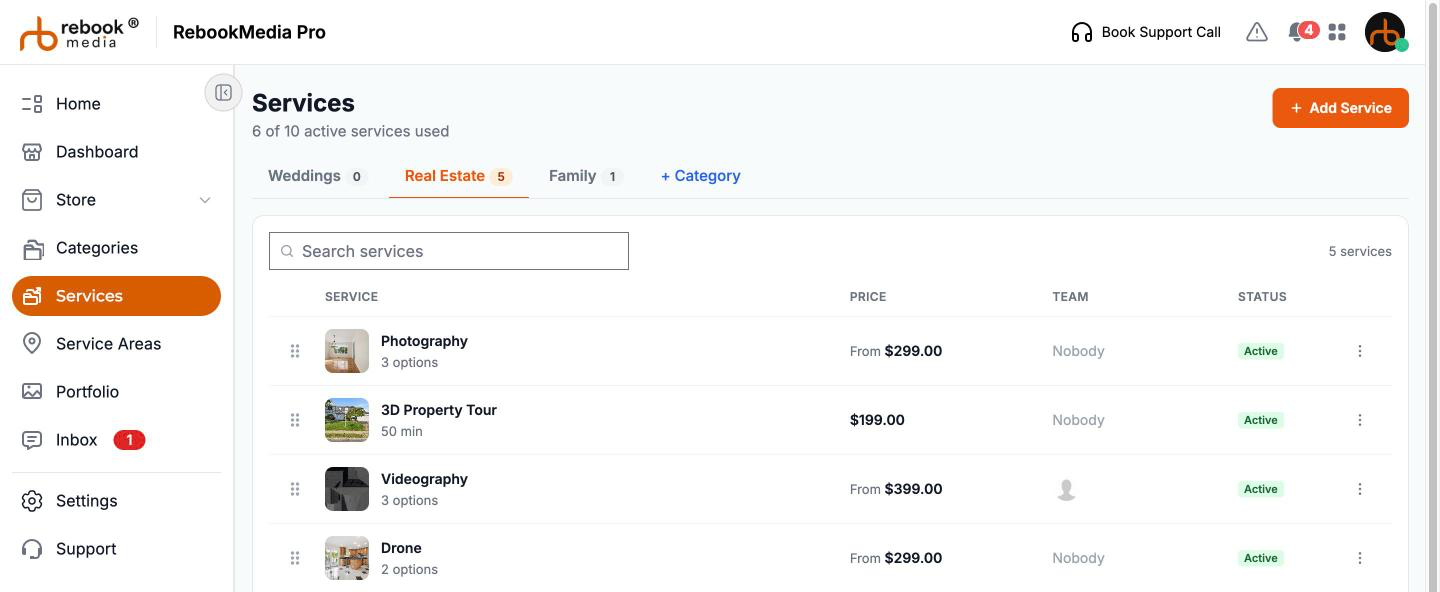
Click a service (or Edit in its ... menu) to open it.
Add a new service
- Choose the category's tab, then click Add Service.
- Enter a Title, the name clients see, for example "Listing Photos and Drone Package".
- Check the Category (the tab you were on is selected).
- Choose the Type: Main Service for something clients book on its own, or Add-on for an extra (see Offer add-ons).
- Leave Active ticked so clients can book it straight away.
- Under Pricing, choose Price by (see below), then fill in the first variant.
- Click Add another variant for more price options.
- Under Team members, tick who provides it and set their pay (optional).
- Click Add service. The page reloads with your new service.
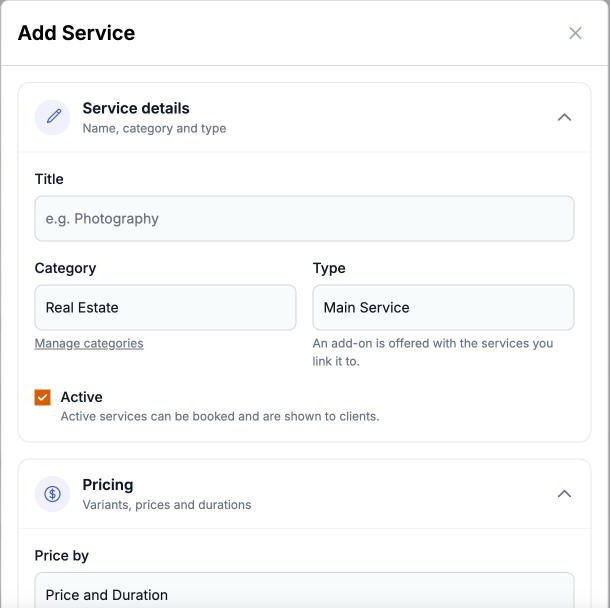
Tip: if something needs fixing, you will see "Please check the form for errors." and the problem is explained in red under the field. The pricing type can't be changed later, so choose it carefully.
Choose a pricing type
Price by decides what extra details each variant has. Every variant still has a price and a duration.
- Price and Duration (default): a price and a length of time, for example a 60-minute headshot session.
- Square Footage: adds a minimum and maximum square footage to each variant, for example "Up to 1,500 sq ft".
- People (Guests/Audience): adds a minimum and maximum number of people, for events.
- Sale Price: adds a minimum and maximum listing price, for real estate priced by the home's sale price.
Add variants (price options)
A variant is one price option a client can choose. A service with one price has one variant; a package with tiers (Basic, Standard, Premium) has one variant per tier. Each variant has:
- Variant name: shown once you add a second variant, for example "Up to 2,000 sq ft".
- Photo or video: shows what the client gets. JPG or PNG photos up to 8 MB, or MP4 or MOV videos up to 1 minute (100 MB). Required when you add a service.
- Price and Duration (minutes): the duration is used when clients pick a time on your booking page.
- Description: what is included, up to 500 characters.
- The minimum and maximum fields for your pricing type.
Assign team members and pay
The Team members section lists you and your active team members who provide services. Tick each person who can do this job, then set their pay: $ (a fixed amount per unit, no more than the lowest variant price) or % (a percentage of the line total, up to 100%). Pay is optional; leave it at 0 if you don't track it. See Pay your team members.
Edit a service
Click the service to open the Edit window. Its sections are Service details, Pricing, Deposit, Team members and More actions; click a heading to open it. Each heading shows a summary, such as "2 variants - from $150.00".
- Changes to details, deposit and team save automatically: you will see "Saving..." then "Saved".
- Changing the Category in Service details moves the service.
- Change a variant: click Edit on its card, make your changes and click Save. Edit one variant at a time.
- Add a variant: click + Add variant, then Edit on the new card and fill in its name, price and duration.
- Delete a variant: click Delete, then Confirm delete within a few seconds.
Important: after adding or deleting a variant, check the Deposit section and turn the deposit back on if needed.
Require a deposit
A deposit asks clients to pay part of the price when they book online, which protects you from last-minute cancellations.
- Open the service and the Deposit section.
- Turn on Require a deposit.
- Choose Fixed amount ($) (up to your lowest variant price) or Percentage of price (%) (1 to 100%).
- Enter the amount. It saves automatically.
Clients pay the deposit by card when they book, and it's taken off their final invoice.
Offer add-ons
Add-ons are extras clients can add to a main service, such as prints, twilight photos, drone shots or rush delivery.
- Create the service with Type set to Add-on.
- Under Link to service(s) (in the Edit window: Offer this add-on with), tick the main services it goes with.
- Set its price and variants like any other service.
Turn on, move or duplicate a service
Use the ... menu on a service:

- Turn off / Turn on: hide a service from clients without deleting it, for example for seasonal offers.
- Duplicate: click twice to make a copy, "[title] - Copy", with its variants, photos, deposit, add-on links and team.
- Move to category: move it to another of your categories.
Delete a service
Open the service, then in More actions click Delete service and Confirm delete. It's removed from your services and booking page. Projects and invoices that already include it aren't changed.
Plan limits
Your plan includes a set number of active services. The top of the page shows how many you are using, for example "3 of 5 active services used". Inactive services don't count.
- At the limit, Add Service shows a lock; click it to see your options, or click get more room.
- A new or duplicated service is saved as inactive, with a message telling you so.
- To make room, turn off a service you no longer offer, or upgrade your plan.
Troubleshooting
My service doesn't appear on my booking page
- Check the service is Active and has at least one variant with a price.
- Check its category is active, and that online booking is on for that category (not "Quotes only") on the Categories page.
"Please upload an image/video."
Every variant needs a photo or video when you add a service.
My photo or video won't upload
Use JPG or PNG photos up to 8 MB, or MP4 or MOV videos up to 1 minute and 100 MB.
"Another variant is already in edit mode."
Save or close the variant you are editing first.
"Enter a name, a price and a duration."
Fill in all three before saving a variant.
A pay rate error
A $ pay rate can't be more than the lowest variant price, and a % can't be more than 100. Lower it, or switch between $ and %.
A team member is missing from Team members
Only active team members set as service providers are listed. Check their settings on the Team page.
Still stuck? Book a free 30-minute call with our support team and we will walk through it with you.