Customize lets you make your website your own: your main photo, headline and colors, which pages and sections show, whether visitors can book online or chat with you, your contact details, social links and a page for each category. Changes save as you go and appear on your live site straight away.
Where to find it: Click Website in the left menu, then click Customize on your live site card (or the palette icon on a template). On a phone, tap the menu icon at the top left first to open the menu.
In this article
- How Customize works
- Logo, color and fonts
- Main photo
- Headline, tagline and About
- Booking and chat
- Pages
- Contact details
- Sections
- Social links
- Category pages
- Troubleshooting
- Related articles
How Customize works
- The Customize Website panel has your options on one side and a live preview on the other. Switch the preview between Desktop and Phone, or click Open full preview. On a phone, use the Options and Preview tabs.
- Everything saves as you make it: "Saving..." then "All changes saved". Click Done when you are finished.
- Anything you leave empty uses your RebookMedia account details.
- Your settings apply to whichever design is live, so you don't need to redo them if you change design.
Good to know: all photos come from your portfolio. To use a new photo, upload it to your portfolio first (see Manage your portfolio).
Logo, color and fonts
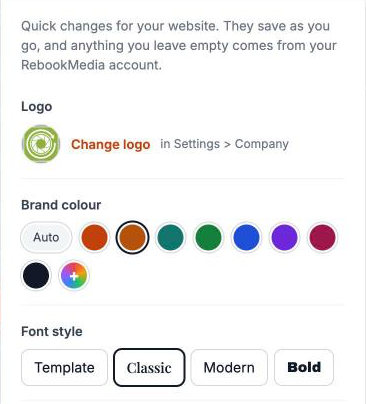
- Logo: click Change logo or Upload a logo. Your logo is set in Settings > Business (see Your business settings).
- Brand colour: Auto, one of the colors, or + to pick your own.
- Font style: Template, Classic, Modern or Bold.
Main photo
- Under Main photo, leave Automatic or click one of your portfolio photos.
- Under Focus point, click or drag to the most important part of the photo, such as a face, so it stays in view on every screen size. Click Reset to start again.
Use a large, sharp photo (at least 1600 pixels wide). Smaller photos are marked Low res and look blurry this big.
Headline, tagline and About
- Headline: the big title on your home page. Leave it empty to use your business name.
- Tagline: a short line under it, such as your category and city.
- About you: your story, shown next to your public image. Leave it empty to use your category bio.
Booking and chat
Under On your website:
- Online booking: shows Book now buttons so visitors can book your services. Turn on Allow Bookings in Settings > Bookings first. With more than one category, Book now asks which one first.
- Website chat: lets visitors message you from your website. Messages arrive in your Inbox.
With online booking off, buttons invite visitors to message you or request a quote instead. What visitors can book, with prices, durations and deposits, comes from your Services and Categories. See Set up online booking.
Pages
Switch pages on or off: Portfolio, Services (with a page for each category), About, Contact (with the contact form) and Client login. Home is always on. Pages you switch off leave the menu.
Contact details
Enter the phone number and email to show on your website, and use the Show switches to show or hide them. Leave them empty to use your business phone and account email.
Sections
Switch home page sections on or off: About, Reviews, Hours and Areas you serve. Empty sections hide by themselves.
Social links
Add your Instagram, Facebook, YouTube, TikTok, LinkedIn and X links. For Instagram, TikTok and X you can just type @yourname.
Category pages
Each of your categories gets its own page. Under Pages > Services, open Categories:
- Use a category's switch to show or hide it on your website. Hidden categories can still be booked on your booking page.
- Click the pencil to edit that category's page.
Edit a category page
- Top of the page: choose the photo (with its own focus point), headline, intro and button text.
- Sections: drag to change the order, and switch off what you don't need. The standard sections are Description, Services & booking, Portfolio, Additional details, FAQs, Reviews and Contact. Give each its own heading.
- Services & booking: choose whether the buttons say Book now or Request a quote.
- Portfolio: show the latest photos from this category automatically, or choose up to 24.
- Additional details and FAQs: add rows with + Add a detail or + Add a question.
- Add a section: + Text, + Text + photo or + Photo row. Sections you add can be deleted.
Click Open page to see it, and Back to return to your options. The description is the same text as the category's description in Services > Categories.
Troubleshooting
"Your changes couldn't be saved. Try again."
Check your internet connection and make the change again.
The Online booking switch is greyed out
Turn on Allow Bookings in Settings > Bookings first.
My photo isn't in the Main photo list
Upload it to your portfolio. Videos can't be used as the main photo, and only your first 60 photos are offered.
"Check your Instagram link."
Paste the full link to your profile, or type @yourname.
My template has no Customize button
It's an older copy of a design. Create a new template from the same design on the Website page.
Still stuck? Book a free 30-minute call with our support team and we will walk through it with you.