Your portfolio shows clients the quality and style of your work. Each category has its own portfolio, shown on that category's profile in the RebookMedia directory, and your website can show your latest work too. At least one portfolio item is needed for a category to be listed.
This article covers uploading photos and videos, adding titles, ordering, moving and deleting items, and where your portfolio appears.
Where to find it: At the top right of the page, click the grid icon (Navigation Panel) and choose Storefront, then click Portfolio in the left menu. You can also click the Update Portfolio tile on the Business Listing card on your Home page.
In this article
- How your portfolio is organized
- Upload photos and videos
- Add a title and description
- Order your portfolio
- Move an item to another category
- Download or delete items
- Portfolio settings, watermark and store
- Where your portfolio appears
- Troubleshooting
- Related articles
How your portfolio is organized
The Portfolio page has a section for each of your active categories. Items you upload to a section belong to that category's portfolio. Each item shows a number for its position. Use More > Size to make the thumbnails bigger or smaller.
Upload photos and videos
- In the category's section, click Add Media, or drag files onto the section ("Drag photos and videos here to upload").
- Choose your files. You can upload several at once, and each shows its progress.
- Keep the page open until the uploads finish.
- Accepted files: JPG, JPEG and PNG photos, and MP4 and MOV videos.
- Photos up to 250 MB and videos up to 1 GB.
- Photos must be at least 1,000 pixels on the long side, and 1,600 or more looks best on your website. Smaller photos are refused ("Photo too small") or marked Low res. Upload your full-size files.
- iPhone HEIC photos and RAW files aren't accepted here; export them as JPG first.
- New items are added at the end of the section.
Tip: show your 10 to 20 strongest, most recent images rather than everything you have shot. Quality matters more than quantity.
Add a title and description
- Click the menu on an item and choose Add Description.
- Enter a Title (for example "New Jersey Wedding Photography") and a Description.
- Save. You will see "Media details saved successfully."
Titles and descriptions are shown on your website templates.
Order your portfolio
Drag items into the order you want; the order saves automatically (long-press first on a phone). Select several items to drag them together; "Moved N photos" appears with an Undo button. The first items are the first clients see, so put your best work at the top.
Move an item to another category
Drag the item from one category's section into another. It then belongs to that category's portfolio.
Download or delete items
- Click the menu on an item to Open it (with its size and upload date), Download it, or Delete it (confirm when asked).
- Click items to select several. The bar at the bottom lets you select all, download the selected items, delete them, or clear the selection.
If you delete every item in a category, that category becomes Unlisted until you add at least one again.
Portfolio settings, watermark and store
Use the tabs on the Portfolio page. Each change saves straight away:
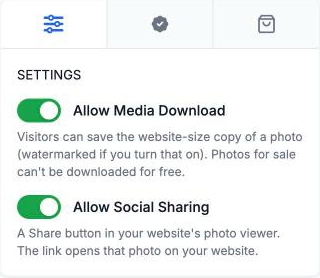
- Settings: Allow Media Download lets website visitors save a website-size copy of a photo, and Allow Social Sharing adds a Share button to your website's photo viewer. Both are off at first.
- Watermark: turn on Enable Watermark, choose a style, and choose All portfolio photos or Only photos for sale. Your website shows watermarked copies; your original files don't change. See Protect your photos with watermarks.
- Store: sell photos from your portfolio. Mark photos as for sale with the For sale buttons in the bar at the bottom.
Where your portfolio appears
- Your directory profile: the Portfolio tab of each category's profile shows that category's items, in your order. Clients can click a photo to see it large.
- Your website: your home page shows a selection of your latest work, and your Portfolio page shows everything, by category, with a full-screen viewer.
- Your Business Listing: at least one item in a category completes its Update Portfolio tile.
Troubleshooting
"Photo too small"
The photo is under 1,000 pixels on the long side. Upload the full-size file from your camera or editing software.
"Upload rejected" or "File too large"
Use JPG, PNG, MP4 or MOV files, with photos up to 250 MB and videos up to 1 GB.
An upload didn't appear
Refresh the page. If the item still isn't there, upload it again, and keep the page open until it finishes.
I don't see a section for one of my categories
Only active categories have a portfolio section. Turn the category on in Categories.
My portfolio isn't on my profile
Check that the items are in the right category's section, and that you are viewing that category's profile.
Still stuck? Book a free 30-minute call with our support team and we will walk through it with you.