Your account settings hold your personal details, profile photo, time zone and password, and let you see every device signed in to your account. This article also covers signing in with Google, resetting a forgotten password, choosing which emails you get, and deleting your account.
Where to find it: Click Settings in the left menu (or Settings in the menu under your photo at the top right). Most of this article is on the User Settings tab. On a phone, tap the menu icon at the top left first to open the menu.
In this article
- Your profile photo
- Your name, email and mobile number
- Verify your mobile number
- Language and time zone
- Change your password
- Devices signed in to your account
- Signing in and Google sign-in
- Forgot your password
- Email preferences
- Your Community intro
- When RebookMedia Support helps in your account
- Delete your account
- Troubleshooting
- Related articles
Your profile photo
- In Profile Image, click Upload.
- Choose a JPG, PNG or GIF image up to 10 MB (400 x 400 works best). It is cropped to a square and saves straight away.
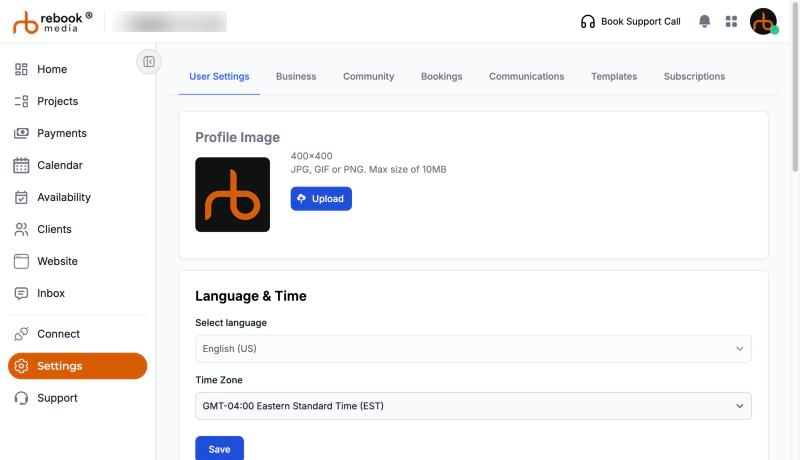
Photos are checked automatically; if yours is flagged as inappropriate, upload a different one. If you sign up with Google and have no photo, your Google photo is used.
Your name, email and mobile number
- In General information, update your First Name, Last Name and Mobile Number (10 digits, for example 908-222-4231).
- Click Save. You will see "Your changes have been saved successfully!"
- Your Email is the address you sign in with and can't be changed here. To change it, schedule a support call (below).
- Mobile numbers are for the US and Canada (+1).
- Changing your number means it needs verifying again.
Verify your mobile number
A verified number lets you receive text messages, such as booking alerts.
- Save your number first, then click the red Verify button next to it.
- You will get a text with a 6-digit code. Type it in Key in OTP here and click Submit OTP.
- The button turns into a green Verified badge.
Didn't get the code? Click Resend. You can request a few codes at a time; if it stops working, wait 15 minutes and try again.
Language and time zone
In Language & Time, choose your Time Zone and click Save. Your business hours, bookings and times across RebookMedia use this time zone, so make sure it is right. The language is English (US).
Change your password
- Go to Settings > Account.
- Under Password, click Email me a link (or Text me a link if your mobile number is verified). You don't need your current password.
- Open the link (it works once, for 1 hour), enter your new password twice and save.
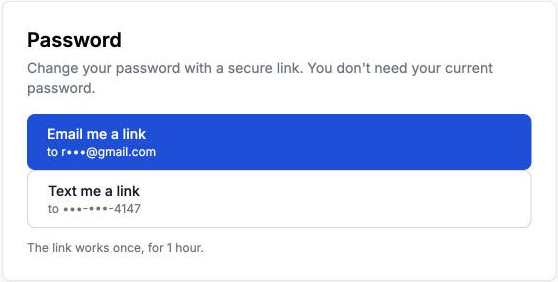
Passwords need 8 to 31 characters, with an upper case letter, a lower case letter, and a number or symbol. If you sign in with Google and have no password yet, the card says Set a password; use it to add one.
If you think someone else has used your account, also click Sign out all other devices (below).
Devices signed in to your account
The Sessions card in Settings > Account lists the devices signed in to your account, such as "Chrome on Mac", with their location and when they were last active. The device you are using is marked This device.
- Sign out one device: click Revoke next to it, then Sign out? within a few seconds. You will see "That device has been signed out."
- Sign out everywhere else: click Sign out all other devices, then Click again to sign out all. You stay signed in on this device.
If you see a device you don't recognize, sign it out and change your password.
Signing in and Google sign-in
- Sign in with your email and password from Log In on the website. Tick Keep me signed in to stay signed in on that browser for up to 180 days; leave it unticked on shared computers.
- Continue with Google: if your Google account uses the same email as your RebookMedia account, they are linked automatically and you are signed in. Google sign-in keeps you signed in.
- If you created your account with Google, you don't have a password yet. Add one with Set a password in Settings > Account.
Forgot your password
- On the sign-in window, click Forgot password?.
- Enter your email and click Send Reset Link.
- Open the email "RebookMedia, Password Reset" and click Reset Password. The link works once, for 1 hour.
- Enter your new password twice (8 to 31 characters, with an upper case letter, a lower case letter, and a number or symbol) and click Submit and Login.
Resetting your password also ends "Keep me signed in" on all your devices.
Email preferences
Open the Communications tab to choose which optional emails you get from RebookMedia. Account Essentials, such as password resets, security alerts and billing, are always on. Turn Marketing Communications off to stop all optional emails, or switch individual topics on and off. Changes save as soon as you flip a switch.
Emails and texts about your bookings are set on the Bookings tab.
Your Community intro
On the Community tab, write a short Community Intro (150 to 300 characters) and click Save. It appears on your card in the Meet Local Pros section other professionals near you see on their dashboard. Intros are checked automatically and removed if flagged as inappropriate.
When RebookMedia Support helps in your account
If you ask our support team for help, they may join your account to show you around. While they do, your pages show a message such as "[Name] from RebookMedia Support is in your account to help you", and when they leave you see "Support has left your account". If they are showing you something, you can click Let me try or Stop following.
Delete your account
- Go to Settings > Account and click Delete Account.
- Read the warning and click Continue. Active subscriptions are cancelled as part of the deletion.
- Enter your password (or type DELETE if you sign in without one) and click Delete Account.
You are signed out of all your devices straight away. This can't be undone.
Troubleshooting
"That email and password don't match"
Check the email and password, or click Forgot password? to set a new one.
The reset link takes me straight to my dashboard
You are already signed in on that browser. Sign out first, or open the link in a private window.
"This link has expired or no user was found"
Reset links work once, for 1 hour. Click Send me a new link.
My new password isn't accepted
Use 8 to 31 characters, with an upper case letter, a lower case letter, and a number or symbol.
I didn't get the verification text
Make sure you saved the right number before clicking Verify. Wait a few minutes, click Resend, or try again after 15 minutes.
"Your image was flagged as inappropriate"
Upload a different photo.
"This account has been suspended"
Contact support@rebookmedia.com if you think this is a mistake.
Still stuck? Book a free 30-minute call with our support team and we will walk through it with you.