RebookMedia keeps you up to date by email and text message: new bookings, messages from clients, payments, contracts and more. This article explains which notifications you get, how to get text messages, and how to choose which optional emails we send you.
Where to find it: Click Settings in the left menu and open the Communications tab. On a phone, tap the menu icon at the top left first to open the menu.
In this article
- Notifications you always get
- Get text messages
- Choose your optional emails
- Your Community intro
- Troubleshooting
- Related articles
Notifications you always get
Emails needed to run your business and protect your account are always on, so you never miss a client. These Account Essentials include:
- new bookings, visit changes and project updates;
- messages from clients and other professionals (see Message clients in your Inbox);
- payments, invoices, receipts and contracts;
- account verification, password resets, security alerts, billing notices and subscription updates.
Tip: add RebookMedia to your email contacts, and check your spam or promotions folder if you are missing emails.
Get text messages
Verify your mobile number to get text messages for new bookings, visit changes and new messages:
- Open Settings > User Settings.
- Enter your Mobile Number (a US number) and save your changes.
- Click Verify. We text you a 6-digit code ("Verification code sent. Check your phone.").
- Enter the code and click Submit OTP. The button turns green and says Verified.
If the code doesn't arrive, click Resend. If you change your number, verify the new one.
Choose your optional emails
Under Communication Preferences, choose which optional emails you would like from RebookMedia:
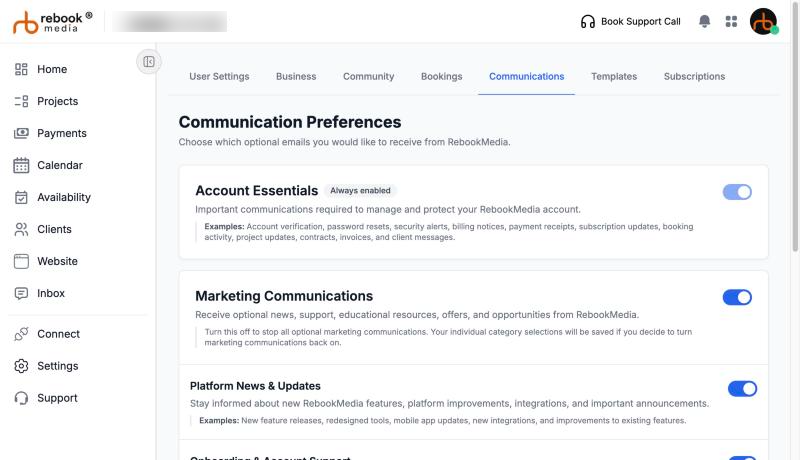
- Marketing Communications: the main switch for all optional emails, such as news, tips, offers and opportunities. Turn it off to stop them all; your choices below are kept if you turn it back on.
- Platform News & Updates: new features and improvements.
- Onboarding & Account Support, Training & Educational Resources, Special Offers & Promotions and Community News & Opportunities.
Each switch saves straight away: "Your communication preferences have been updated." Changes apply to future emails and don't affect your Account Essentials.
Your Community intro
On the Community tab, write a short Community Intro (150 to 300 characters) and click Save. It introduces you to other professionals near you in Meet Local Pros on their Home page. Intros are checked automatically and aren't saved if flagged as inappropriate.
Troubleshooting
I don't get text messages
Check your mobile number shows Verified in Settings > User Settings.
"Please enter the OTP to proceed."
Type the 6-digit code from the text message before clicking Submit OTP.
"We could not update your preference. Please try again."
Reload the page and try the switch again.
I still get emails after turning off Marketing Communications
Account Essentials, such as bookings, messages and payments, are always sent.
"Bio must be between 150 and 300 characters."
Make your Community intro at least 150 and at most 300 characters.
Still stuck? Book a free 30-minute call with our support team and we will walk through it with you.