Visits are the appointments on a project: the shoot, a walkthrough, a consultation or an online meeting. When you schedule a visit, RebookMedia sends calendar invites to you, your client and the professional doing the job, and keeps everyone updated if it changes.
Where to find it: Open the project. Use Create New > Visit, the Add Visit button, or Add New Visit on the Visits tab. On a phone, use Create New.
In this article
- Schedule a visit
- Online visits
- Check the day before you book
- What everyone receives
- The Visits tab
- Reschedule a visit
- Cancel a visit
- Visits from online bookings
- Troubleshooting
- Related articles
Schedule a visit
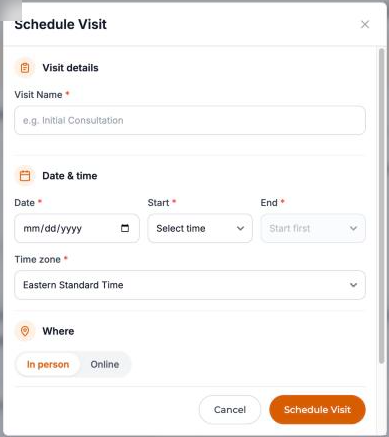
- Enter a Visit Name, for example "Listing photos" or "Initial Consultation".
- If you have a team, choose the Professional doing the visit.
- Pick the Date, then the Start time. The End time is set to an hour later; change it if needed.
- Check the Time zone. It starts as your profile's time zone; use the time zone of the place the visit happens.
- Choose In person and click Add address (optional), or Online.
- Leave Send visit updates to the client ticked to send your client an email and calendar invite, plus any updates.
- Click Schedule Visit. You will see "The visit has been scheduled successfully."
Tip: double-check the date before you save. Visits in the past are marked Completed automatically.
Online visits
- If the professional has connected Google Calendar, a Google Meet link is created automatically and sent to everyone with the invite.
- Click Use my own link instead to paste a Zoom, Microsoft Teams or other meeting link (starting with https://).
- Without Google Calendar, paste a meeting link. See Use your calendar and connect Google Calendar.
Check the day before you book
Next to the form (or below it, on smaller screens), Schedule for [name] lists that professional's day: their RebookMedia visits and, if connected, their Google Calendar events. Anything that clashes is marked Overlaps. It's a warning only, so you can still book if you need to.
What everyone receives
- Your client (when updates are on): an email "[business] - Booking Invitation" with the date, time and address or join link, and a calendar invite. With Google Calendar connected, they are added as a guest on the Google event instead.
- The professional doing the visit: a confirmation and calendar invite, or the event on their Google Calendar.
- Text messages to those with a verified mobile number.
The Visits tab
The project's Visits tab lists every visit, with upcoming ones first. Each shows the date and start time, the place or a Join link, who is doing it, and a status:
- In progress: scheduled and upcoming.
- Rescheduled: moved to a new time.
- Completed: the visit time has passed. This happens automatically.
- Canceled: cancelled; it stays in the list for your records.
Upcoming visits and to-dos also show under Coming Up In The Next 7 Days at the top of the project.
Reschedule a visit
- On the Visits tab, click the Reschedule Visit icon on the visit.
- Change the professional, date, time, place or meeting link.
- Click Re-Schedule Visit.
Everyone gets a "Booking Rescheduled" email with an updated invite, and Google Calendar events move automatically. You can't reschedule into the past, or reschedule a completed or cancelled visit.
Cancel a visit
- On the Visits tab, click the Cancel Visit icon.
- Click Yes, Cancel. You will see "Visit canceled successfully."
Your client is always told: they get a "Booking Cancelled" email, the event is removed from calendars, and a text if their phone is verified. Cancelling a visit doesn't cancel the project or refund a deposit; do those separately if needed.
Visits from online bookings
When a client books online, a visit called "Booking Visit" is created for the time they chose, in your profile's time zone, with client updates on. Rename it or reschedule it like any other visit. See Set up online booking.
Troubleshooting
"Please select timezone of the visit place/preferred."
Choose a time zone before scheduling.
"Please enter a valid link (starting with https://)."
Paste the full meeting link, including https://.
"This professional hasn't connected Google Calendar, so a Google Meet link can't be created."
Paste a meeting link instead, or connect Google Calendar for that professional.
"The visit was scheduled, but Google didn't create a Meet link."
Reschedule the visit to add a meeting link.
"You cannot reschedule to a past date or time."
Choose a time in the future.
My client didn't get the invite
Check that Send visit updates to the client was ticked and that the client has an email address. Ask them to check their spam folder.
Still stuck? Book a free 30-minute call with our support team and we will walk through it with you.