Promo codes let you offer a percentage off to clients who book you online, for example for a seasonal offer, a returning-client thank-you or a local event. Clients type the code on your booking page, and the discount comes off their deposit and their final invoice.
This article covers creating a promo code, how clients use it, pausing and removing codes, and seeing who used them.
Where to find it: At the top right of the page, click the grid icon (Navigation Panel) and choose Business, then click Promos in the left menu.
In this article
- How promo codes work
- Create a promo code
- How clients use a code
- Where the discount shows
- Pause or remove a code
- See who used a code
- Troubleshooting
- Related articles
How promo codes work
- Codes give a percentage off the booking.
- They work when clients book online, on your RebookMedia booking page or your own website's /book page. They can't be added to an invoice later.
- A code works as soon as you create it, until the end of the day before its Expires At date.
- Codes can't be edited. To change one, remove it and create a new code with a different name.
Create a promo code
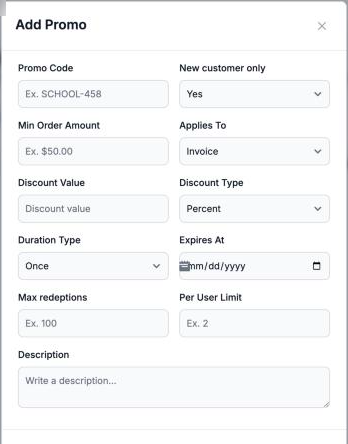
- On the Promos page, click New Promo.
- Enter the Promo Code clients will type, for example SPRING-15. Use letters, numbers, hyphens and underscores only, with no spaces.
- Set New customer only to No so every client can use it.
- Enter the Min Order Amount as a plain number without a $ sign, for example 100, or 0 for no minimum.
- Leave Applies To as Invoice.
- Enter the Discount Value as a percentage, from 1 to 100. Discount Type is Percent.
- Leave Duration Type as Once.
- Choose the Expires At date. The code stops working at the start of that day, so pick the day after your offer ends.
- Enter Max redeptions: the total number of times the code can be used, for example 100.
- Enter a Per User Limit of at least 1, for example 1.
- Optionally add a Description for your own records. Clients don't see it.
- Click Add. You will see "Promo added successfully." and the code appears in the list as active.
Tip: choose a name you won't need again for a different offer: once used, a code name can't be reused, even after the code is removed.
How clients use a code
- On your booking page, the client enters their contact details (or signs in), chooses services, a professional, a date and a time.
- They type the code in Promo Code and click Apply Promo.
- They see "Promo code applied.", "Overall you saved $X", and the totals after the discount.
- They accept your terms and click Book Now.
- If the order is below your minimum, they see "Promo code applies only on orders above $X."
- Changing the services, date, time or professional removes the discount. Tell clients to apply the code last, just before booking.
- Any other problem with the code (expired, paused, removed or used up) shows "Promo code invalid or expired."
Where the discount shows
- Deposit: the client is charged the discounted deposit when they book.
- The project: your client sees "Promo Applied" with the code and the discount on their project, and the total after the discount.
- Invoices: when you send the invoice for the rest, you see "Promo Discount Applied" with the code, and the discount is taken off the services. Send the full balance to keep the discount; a custom smaller amount doesn't include it.
- Collect Payment: the balance due already includes the discount.
Pause or remove a code
- Pause: tick the code in the list and click Paused. Clients can no longer use it. Paused codes can't be turned back on, so only pause a code you have finished with.
- Remove: tick the code and click Remove. It disappears from your list and can no longer be used. Bookings that already used it keep their discount.
Neither action asks you to confirm, so check which codes are ticked first.
See who used a code
Click View Analytics on a code to see its details. To check a particular booking, open the client's project: the code and the discount are shown in the order details.
Troubleshooting
My client says the code doesn't work
- Check the code's Status is active and its Expires At date hasn't arrived.
- Check the order meets your Min Order Amount.
- Check it hasn't reached Max redeptions.
- Make sure the client applies the code after choosing their services and time, on your booking page (not on an invoice).
"Promo code '...' already in used"
You have used that code name before. Choose a different name.
"Promo Code can only contain letters, numbers, hyphens (-), and underscores (_)"
Remove spaces and other characters from the code.
"Failed to create promo/coupon in Stripe"
Check that Discount Value, Max redeptions and Per User Limit are filled in with numbers of 1 or more, then try again.
I need to change a code
Codes can't be edited. Remove it and create a new one with a different name.
I can't find Promos on my phone
Open Promos from a computer or tablet, where the Navigation Panel grid icon is shown.
Still stuck? Book a free 30-minute call with our support team and we will walk through it with you.